> ## Documentation Index
> Fetch the complete documentation index at: https://www.recraft.ai/docs/llms.txt
> Use this file to discover all available pages before exploring further.
# Remix
Remix generates new versions of an image while keeping the overall concept intact. Each remix introduces slight differences in elements like character appearance, object position, or scene composition.
Remix the image by adjusting the description and similarity strength. Start with an image, rewrite the prompt (e.g., 'cat' to 'dog'), and set how closely the new image should match the original.
The Remix function does not use a prompt. Instead, it uses the visual content of the original image to generate alternatives in different aspect ratios.
**How to use Remix**:
1. Select an existing image on the canvas.
2. Click on the **Remix image** in the context panel.
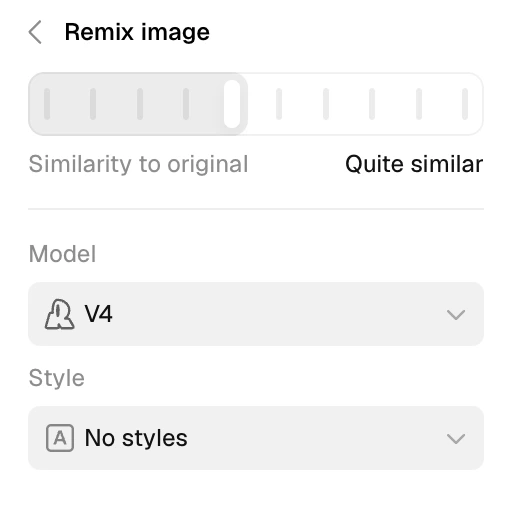
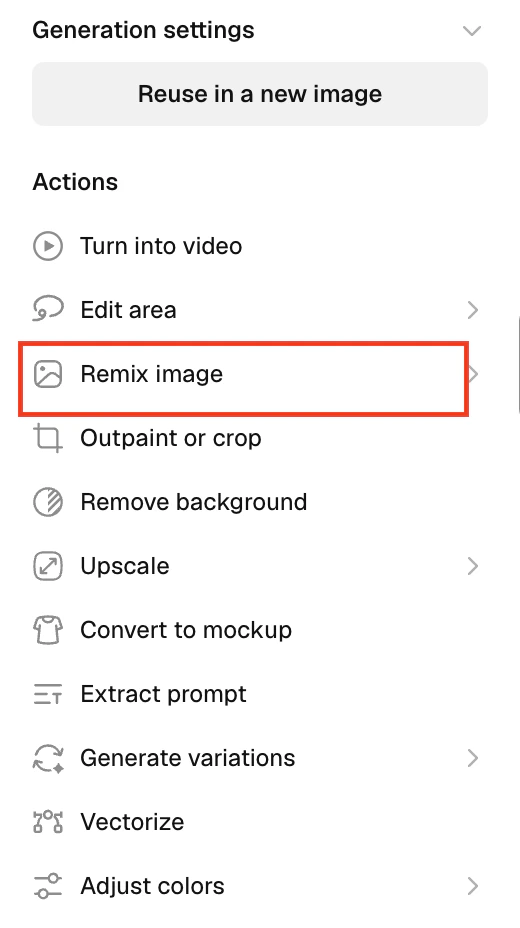 3. **Adjust similarity to the original**\
Use the slider at the top to control how closely the new image should match the original.
**Select the model**\
Under the *Model* section, choose the generation model.
* Here, **V4** is selected.
**Choose a style**\
In the *Style* section, you can apply a predefined style to the image.
* Currently, **No styles** is selected.
3. **Adjust similarity to the original**\
Use the slider at the top to control how closely the new image should match the original.
**Select the model**\
Under the *Model* section, choose the generation model.
* Here, **V4** is selected.
**Choose a style**\
In the *Style* section, you can apply a predefined style to the image.
* Currently, **No styles** is selected.
 4. Click **Generate** to produce a set of new outputs based on the selected image.