Recraft for Figma
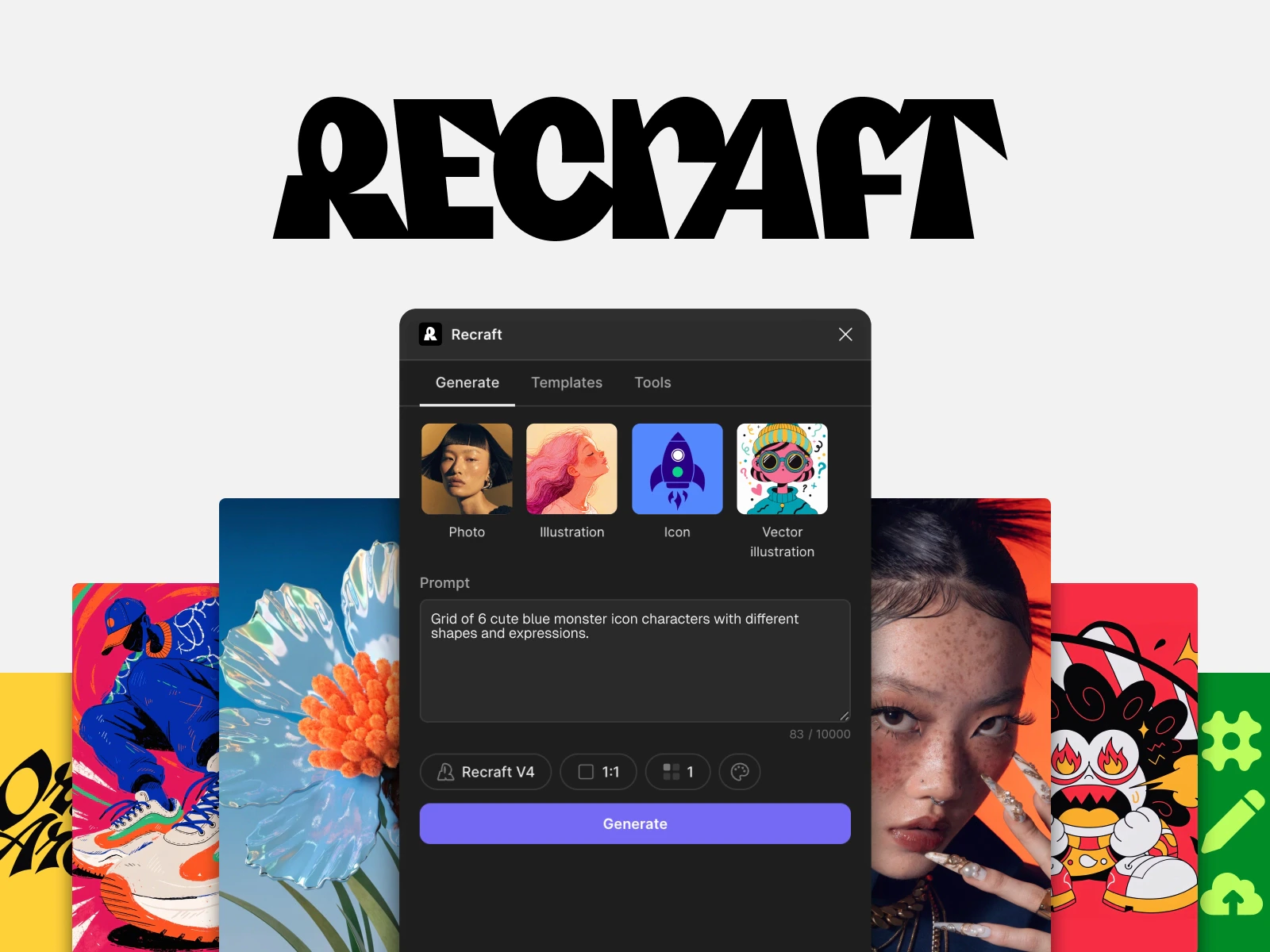
The Recraft Figma plugin brings AI image and vector generation directly into your Figma workspace. Generate raster images or fully editable SVG vectors without switching tools, and apply editing operations on any image inside your file. Features • AI image generation - Generate raster images from a text prompt using Recraft V3, V4, or V4 Vector Pro models. • Vector generation - Produce editable SVG vectors, including icons and logos, ready to use as Figma layers. • Vectorization - Convert any raster image to a clean, scalable vector. • Background removal - Remove image backgrounds in one click. • Upscaling - Increase resolution for print or high-density screens. • Templates — Browse Recraft’s template library to guide style and composition. How to install • Go to the Recraft plugin page on Figma Community. • Click Open in Figma — the plugin is added to your account automatically. • In any Figma file, open Plugins → Recraft. • Sign in with your Recraft account. How to use • Open the plugin from the Plugins menu in any Figma file. • Enter a prompt describing the image or vector you need. • Select a model (V3, V4, or V4 Vector Pro) and any style preferences. • Click Generate. • Drag the result onto your canvas, or use the editing tools to refine it. Typical workflow A product designer generating UI illustration assets can stay in Figma throughout: write a prompt, generate an SVG icon, drag it to the canvas, and adjust it like any other vector layer. Background removal and upscaling are available on selected images without leaving the file.
Recraft for Framer
The Recraft plugin for Framer lets you generate images and vectors for web projects directly from the Framer canvas. It is designed for website and landing-page workflows where visual assets need to be web-ready and optimised for performance. Features • AI image generation — Generate raster images using Recraft V3, V4, or V4 Vector Pro. • Vector generation — Create editable SVG illustrations, icons, and logos. • Vectorization — Convert uploaded raster images to vector format. • Background removal — Clean up images for transparent-background use in web layouts. • Upscaling — Increase resolution for hero images and full-width sections. • Templates — Browse templates to keep style consistent across generated assets.
How to install No installation required. Access the plugin directly from the Framer canvas: • Open a Framer project and click browse all Plugins icon in the toolbar. • Search for Recraft and click Open Plugin. • Alternatively, visit the Recraft page on the Framer Marketplace. • Sign in with your Recraft account. Practical examples • Hero section illustration - Generate a custom illustration from a prompt and drop it into the hero section of a landing page. • Icon set - Use V4 Vector Pro to generate a consistent set of SVG icons for a navigation or feature grid. • Background image - Generate a full-width raster image, upscale it for high-resolution displays, and set it as a section background.
Recraft Chrome Extension
The Recraft Chrome Extension AI image generation and editing to any webpage. It opens as a side panel and works alongside Google Docs, Google Slides, Gmail, and other web-based tools, letting you generate and insert assets without leaving the browser tab. Features • Image generation on any webpage - Generate raster images and vectors from a text prompt in the side panel. • Image editing - Pick any image on the current page to edit, or upload your own. Apply background removal, vectorization, and upscaling. • Direct insertion - Insert generated images directly into Google Docs, Google Slides, and Gmail. • Templates - Browse and apply Recraft templates from within the extension. How to install • Visit the Recraft extension page on the Chrome Web Store. • Click Add to Chrome. • Pin the Recraft icon to your browser toolbar for quick access. • Click the icon on any webpage and sign in with your Recraft account. Typical use cases • Google Docs - Generate an illustration mid-document and insert it at the cursor position. • Google Slides - Create a custom image for a slide without opening a separate design tool. • Gmail - Add a generated image to an email directly from the side panel. • General browsing - Click any image on a webpage to remove its background or upscale it.Recraft for Google Docs
The Recraft Google Docs lets you generate raster images and insert them directly into a document. You can also edit images already in the document using background removal and upscaling. Vector image generation requires opening Recraft directly at recraft.ai. How to install • In Google Docs, go to Extensions → Add-ons → Get add-ons. • Search for Recraft and click Install. • Grant the required permissions and sign in with your Recraft account. • Access the add-on via Extensions → Recraft.Recraft for Google Slides
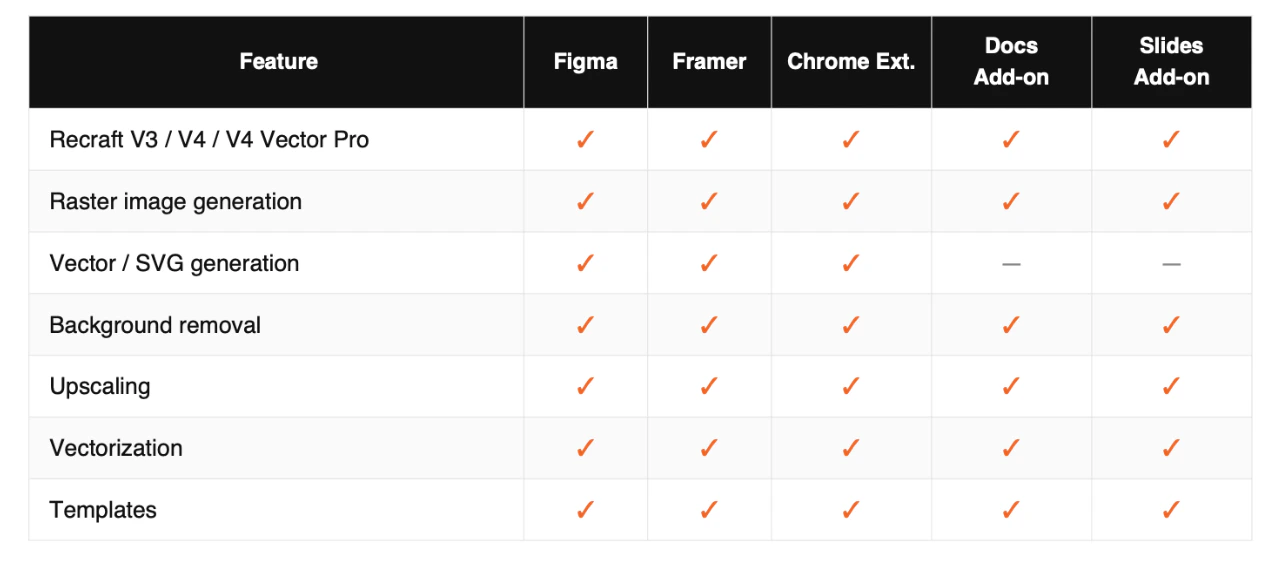
The Recraft Google Slides add-on works the same way as the Docs add-on, but outputs images directly onto your slide. Background removal and upscaling are supported for images already on the slide. Vector image generation requires opening Recraft directly at recraft.ai. How to install • In Google Slides, go to Extensions → Add-ons → Get add-ons. • Search for Recraft and click Install. • Grant the required permissions and sign in with your Recraft account. • Access the add-on via Extensions → Recraft. Common Features Across Plugins All Recraft integrations share the same underlying models, editing tools, and account system. The table below shows feature availability per platform. Please note that for vectorization and vector images, you need to go to Recraft if you are using Google add-ons.