Short answerVectorizer Pro produces cleaner SVGs in Recraft: straight lines stay straight, corners stay sharp, and curves stay smooth. It is available to everyone in Recraft Studio, on every plan.
Key takeaways
- Vectorizer Pro has been available to everyone in Recraft Studio, on every plan, since October 29, 2026.
- Hatching, outlines, and other straight strokes come out as straight, evenly spaced paths instead of wavy ones.
- Sharp details like icon tips and corners keep their points instead of rounding into blobs.
- Flat illustrations, icons, logos, and line art get the most out of Vectorizer Pro, while heavily textured sources can still need cleanup.
What Vectorizer Pro changes
A vectorizer turns the pixels of a PNG, JPG, or WebP into paths and shapes, so the image scales to any size as an editable SVG. The hard part is deciding where a line really runs and where an edge really turns. That is where Vectorizer Pro makes the difference.
Vectorizer Pro follows the shapes in your image more closely and produces cleaner SVGs. You get fewer wobbly lines, fewer false bumps, and fewer stray specks, which means less cleanup in Figma or Illustrator afterward. It is available to everyone in Recraft Studio, on every plan.
Every comparison below is a crop from the same source image, vectorized once with Vectorizer and once with Vectorizer Pro. Nothing was edited by hand.
Straight lines stay straight
Hatching is a tough test for any vectorizer, because a dozen parallel lines leave no room to hide a wobble. Vectorizer bent the lines and left small knots where they met the outline. Vectorizer Pro keeps them straight and evenly spaced.
Before · Vectorizer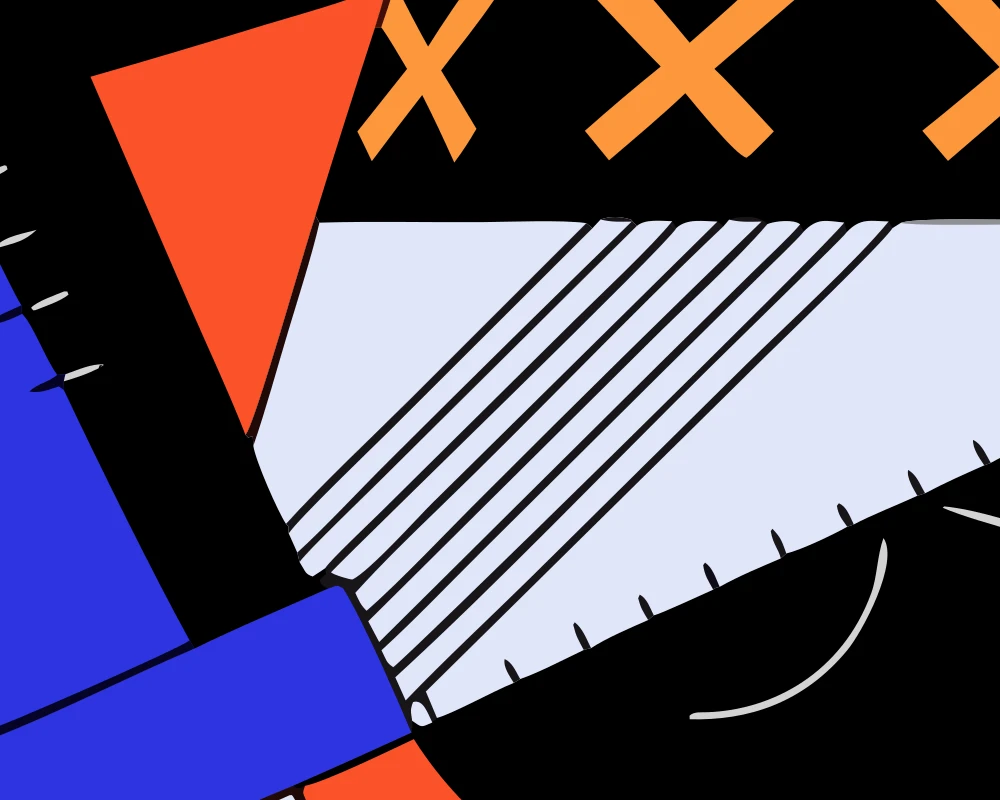
After · Vectorizer Pro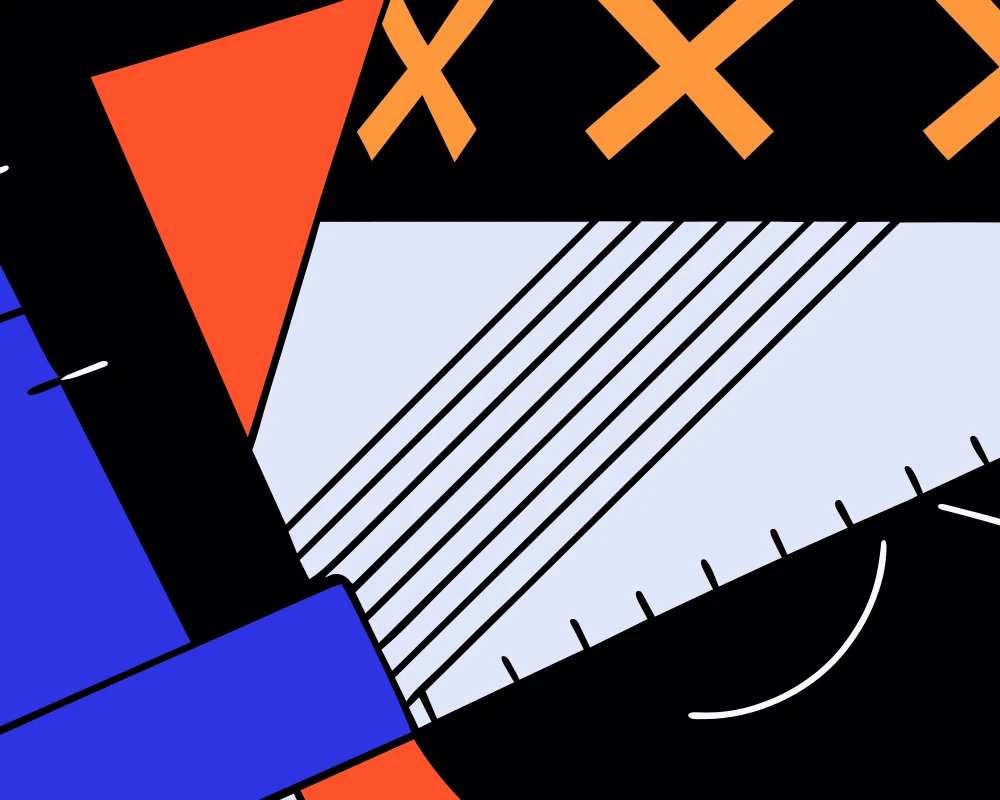
Close-up of a flat illustration of a cyclist, vectorized from the same raster image.
Corners stay sharp
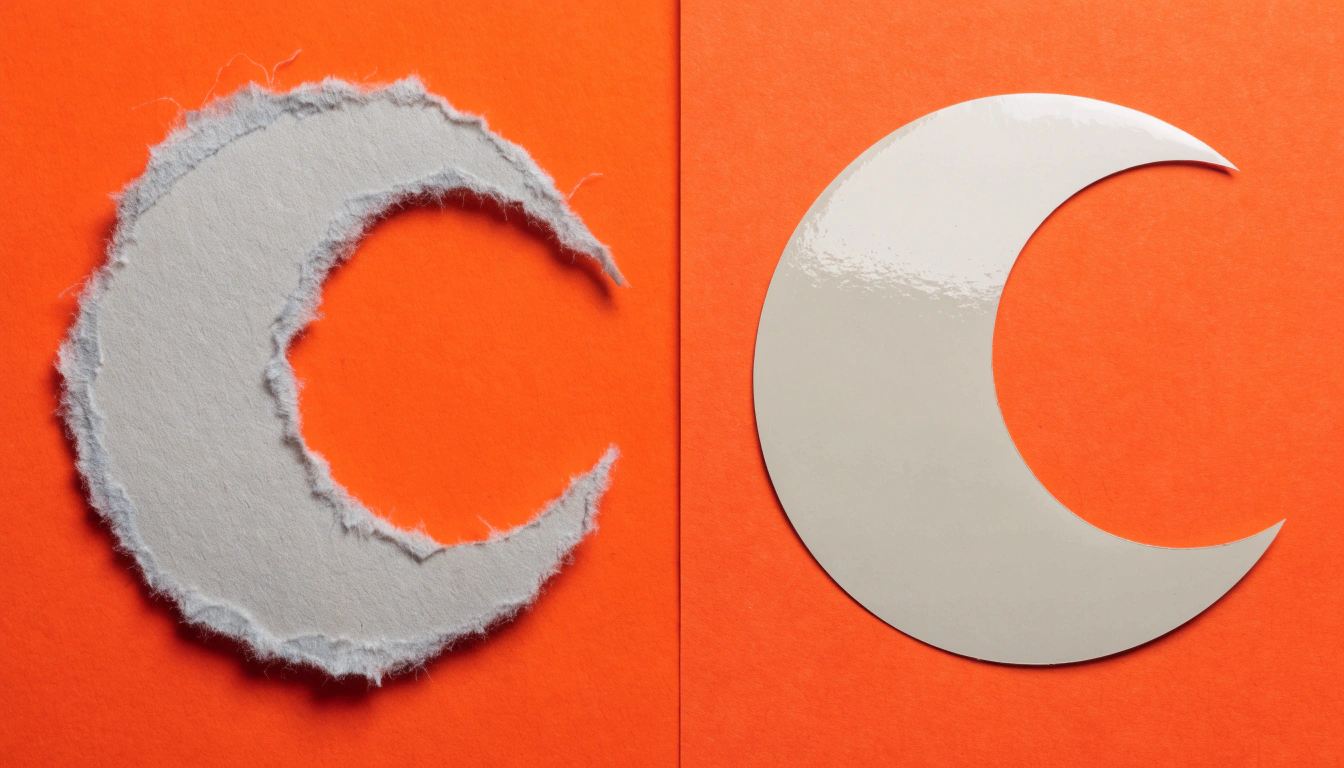
Icons live and die by their points. In this line icon of a crescent moon, Vectorizer rounded the lower tip into a blunt blob. Vectorizer Pro keeps the tip pointed, so the icon reads the same at 16 px and at poster size.
Before · Vectorizer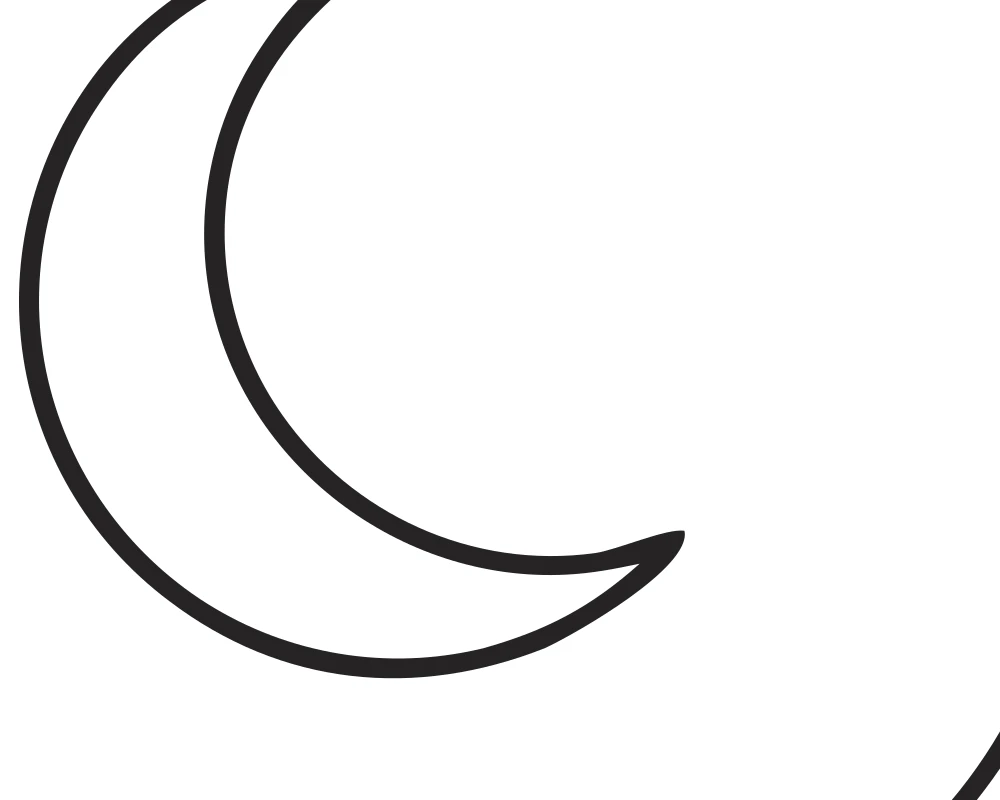
After · Vectorizer Pro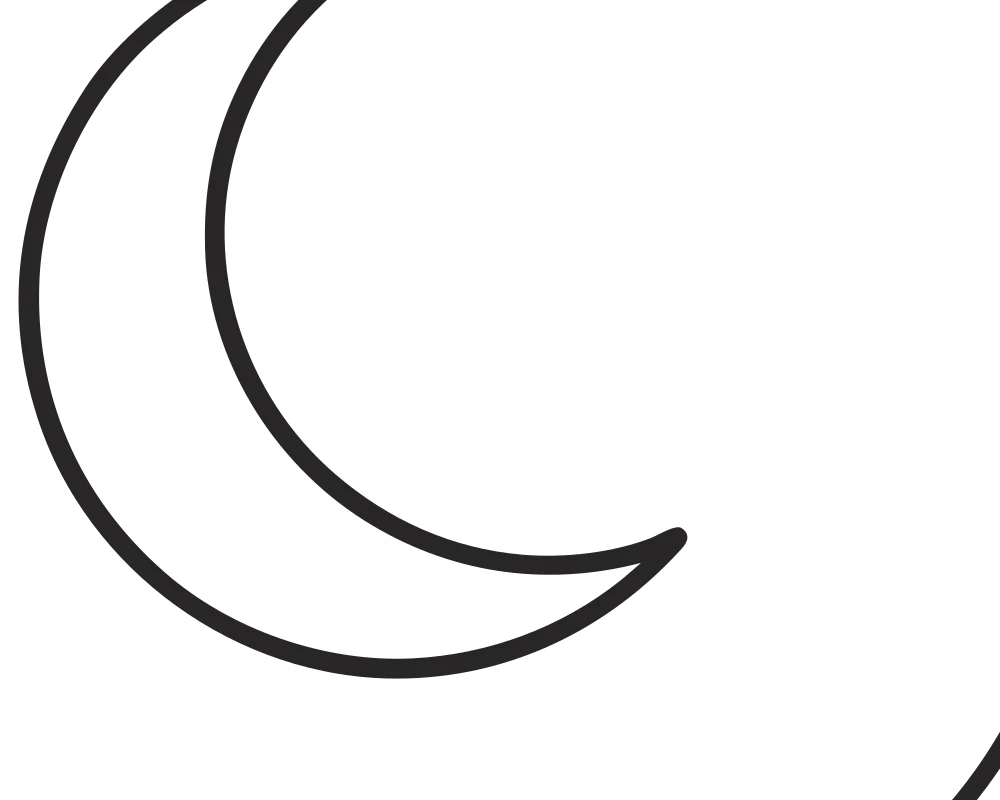
Close-up of a fine-line icon set, vectorized from the same raster image.
Curves stay smooth
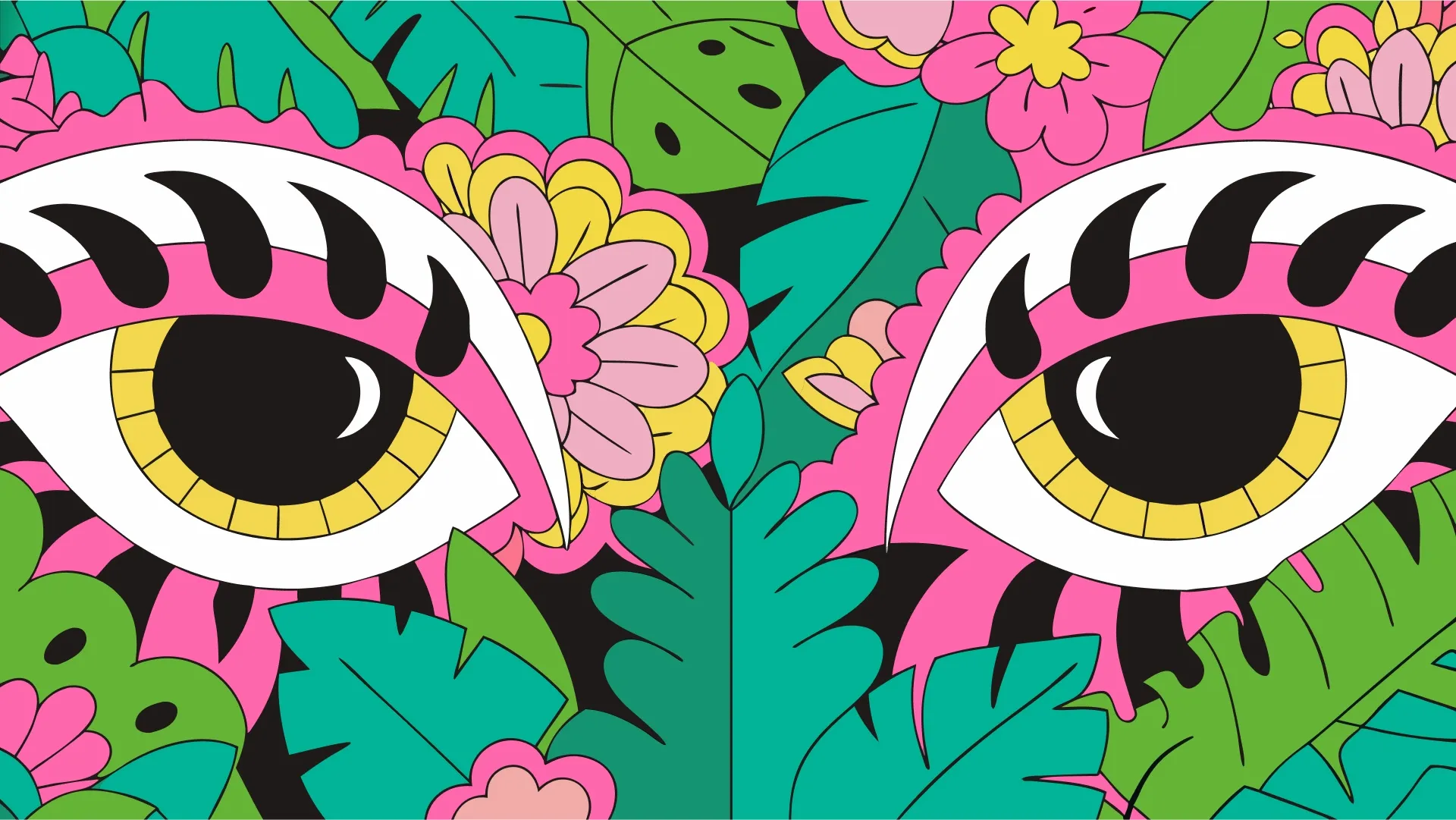
A rounded frame should be one continuous curve. Vectorizer added a small bump where the corner meets the straight edge, and it is the kind of flaw you notice only after printing. Vectorizer Pro draws the frame as one clean sweep and keeps the swallow's wing tip crisp.
Before · Vectorizer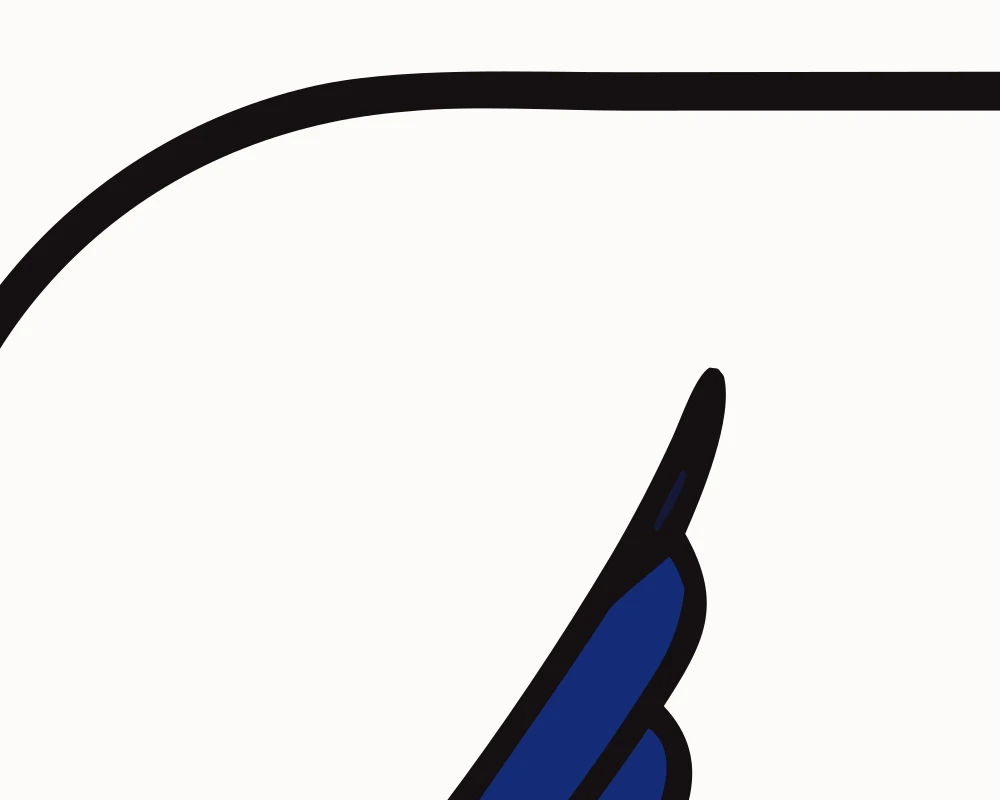
After · Vectorizer Pro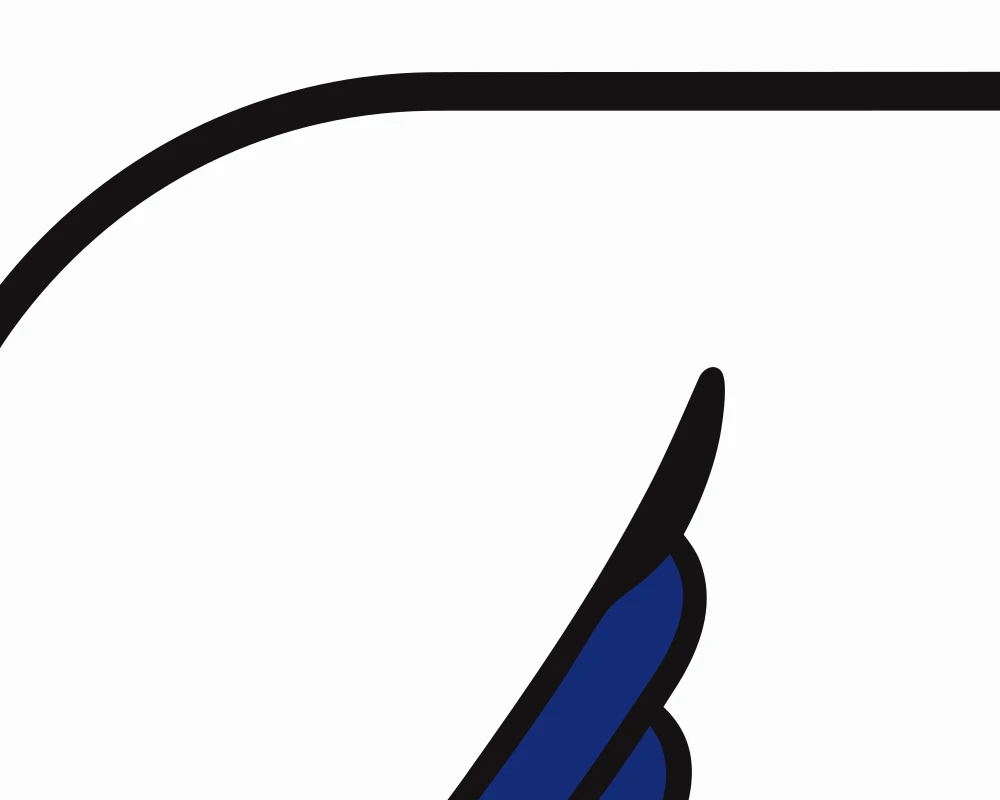
Close-up of a tattoo-style icon set, vectorized from the same raster image.
Which images vectorize best
Vectorizer Pro helps most where the source is already graphic: flat illustrations, logos, icon sets, stickers, and line art with clear edges and solid fills. These are also the files that end up on merch, signage, and app screens, where a wobbly edge shows.
Photos and heavily textured artwork are a different job. A vectorizer turns soft gradients and grain into many small shapes, and hand-drawn texture can come through as uneven outlines. For those sources, simplify the image first, or start from a prompt with the AI vector generator so there is nothing to convert. For more on choosing sources, see vectorization tips every designer should know.
How to use Vectorizer Pro in Recraft Studio
- Open a project in Recraft Studio and upload a PNG, JPG, or WebP, or pick an image you already generated on the canvas.
- Select the image and click Vectorize. The tooltip shows Vectorizer Pro.
- Use Adjust colors to reduce the color count or recolor the result, and the vector editor to move individual points.
- Export the result as SVG, PDF, or Lottie.
An image you vectorized before October 29 can come out cleaner if you run it again. Select an image and click Vectorize. Try Vectorizer Pro in Recraft Studio.