Download app
Download app

Veo

Google DeepMind's Veo family is available in Recraft Studio across three generations: Veo 2, Veo 3, and the latest Veo 3.1 — each in Standard and Fast variants. Veo 3.1 delivers the highest quality, with strong temporal consistency, nuanced camera movement, and sophisticated scene understanding.
Trusted by designers at

Cinematic video with temporal consistency from Google DeepMind

Veo from Google DeepMind produces video with high resolution and consistent motion across frames. It handles complex multi-element compositions, nuanced camera movements, and detailed prompt interpretation — suited for professional creative work, advertising, and high-production-value content.

Recraft Studio offers five Veo variants: Veo 2 Standard, Veo 3 Standard and Fast, and Veo 3.1 Standard and Fast. Fast variants deliver quicker generation at slightly reduced fidelity; Standard variants prioritize output quality. All support both text-to-video and image-to-video workflows.

Try Veo

How to use Veo in Recraft Studio

1
Open Recraft Studio
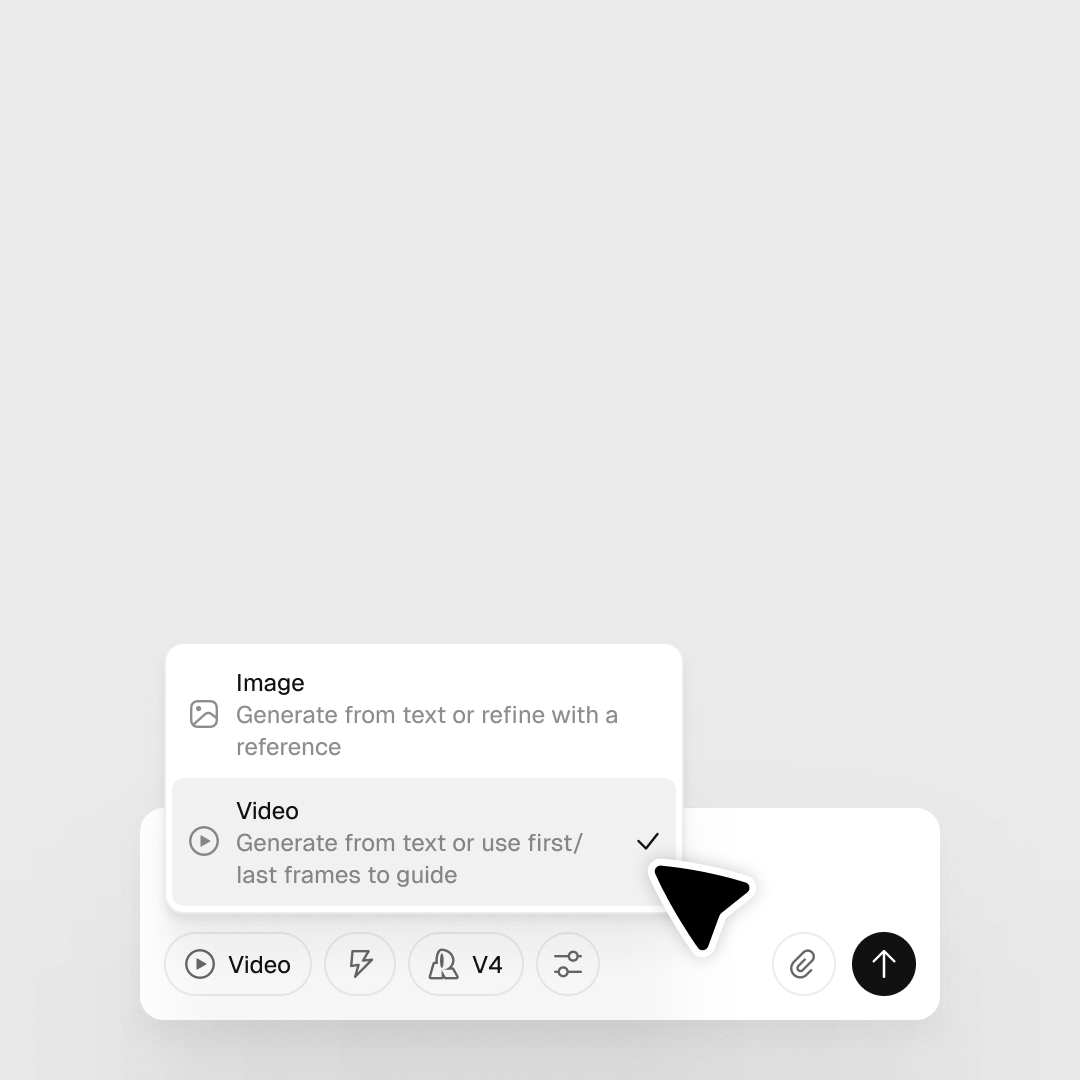
In the prompt panel, click the 'Image' control and switch to 'Video' to enable the video model selector.
2
Select your Veo model
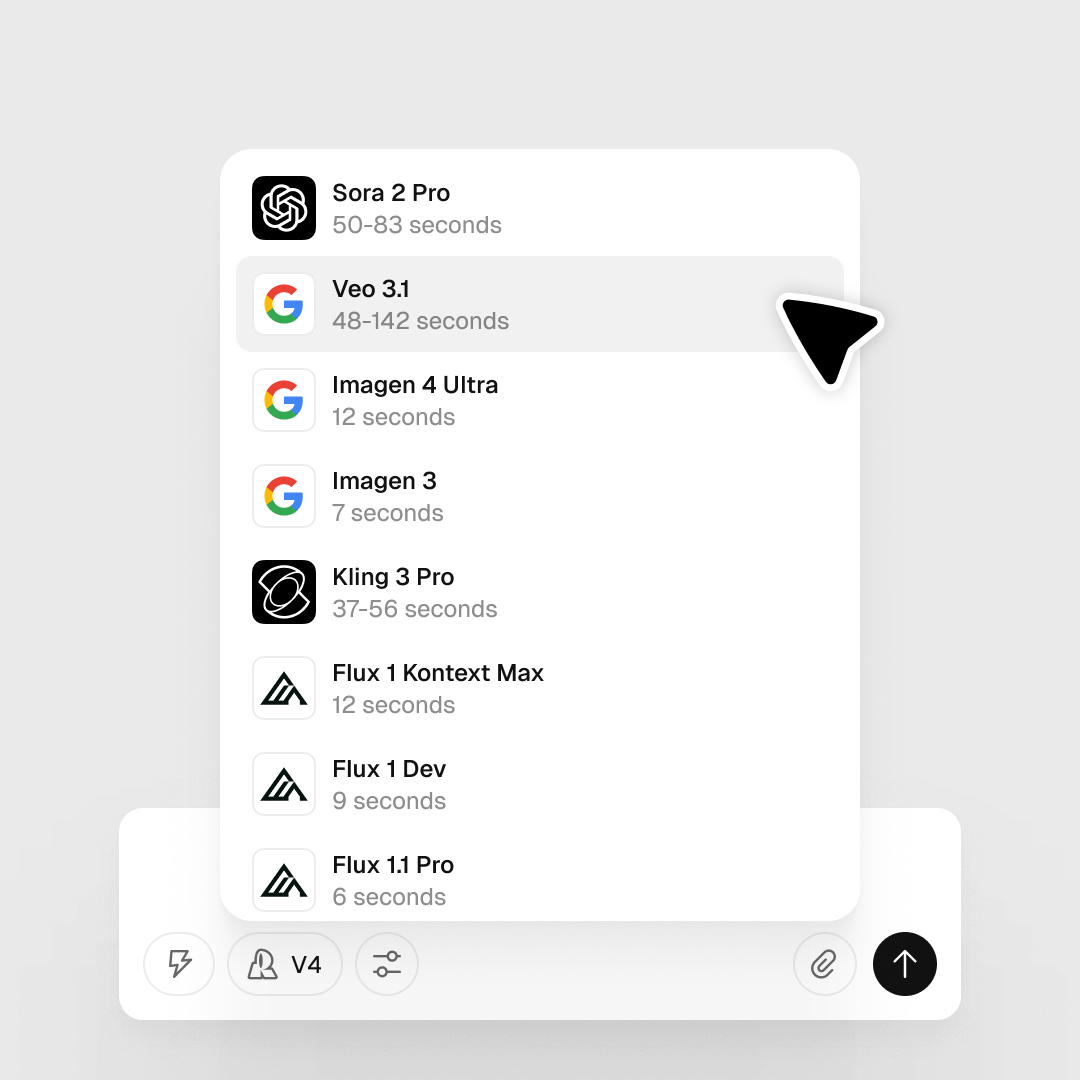
In the Model selector, choose your variant: Veo 3.1 Standard or Fast (latest), Veo 3 Standard or Fast, or Veo 2 Standard. Fast variants trade some fidelity for speed.
3
Enter a prompt and generate
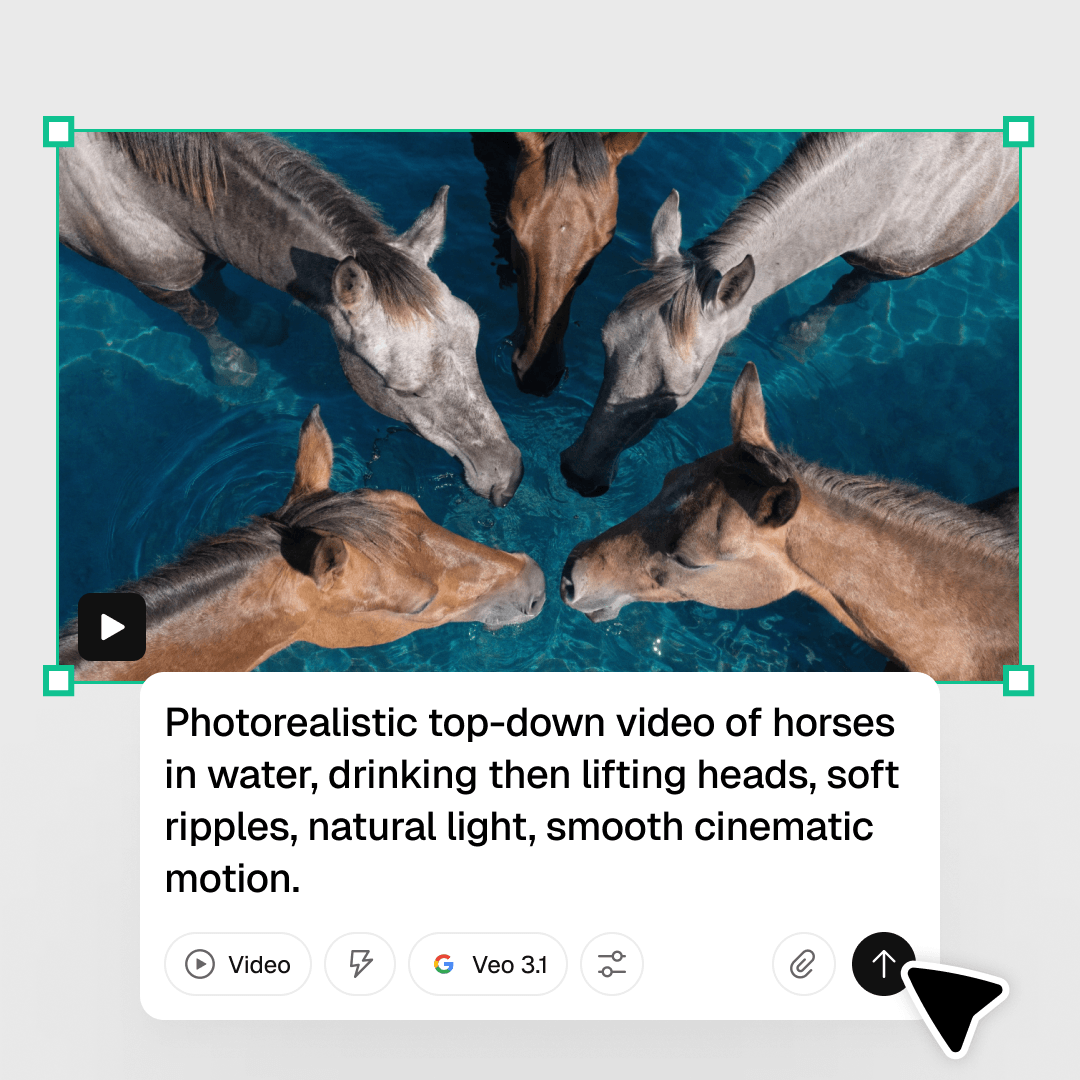
Type a text prompt for text-to-video, or select an image on the canvas for image-to-video. Click Generate, then right-click the video layer to download.

Explore more

All tools that you need for a perfect design, in one place

AI models in Recraft Studio

All top models for image and video generation and editing in one place.

AI image generator

Generate high-quality images with the best AI models from Recraft.

AI vector generator

Create editable SVGs directly from text descriptions.

Mockup generator

Visualize products, packaging, and marketing materials instantly.

AI background remover

Remove unwanted backgrounds instantly while keeping edges clean and natural.

AI image editor

Edit, enhance, and transform any image using simple text prompts or intuitive controls.

Image format converter

Convert between any raster and vector formats such as SVG, PNG, JPG, TIFF, PDF, and more.

AI image combiner

Merge multiple images into one coherent composition.

FAQ

What makes Veo well suited for cinematic video?

Veo delivers high visual fidelity, smooth motion, and accurate prompt interpretation — making it well suited for cinematic scenes, product shots, and polished short-form content with natural camera movement.

Can I use an image as a starting point with Veo?

Yes. Generate your starting frame with Recraft V4 or any image model in Recraft Studio, then pass that image to Veo to animate it — giving you precise control over the visual style before video generation begins.

How many credits does it take to generate with Veo?

Credit costs vary by output length and settings. You can check the full breakdown in Recraft’s documentation.