Any AI image generator from image works this way, and in Recraft Studio it takes four steps on the free plan.
The source image carries the composition, the colors, and the subject. Your prompt carries the change. Most image-to-image jobs fall into one of three kinds: an edit that changes one element, a restyle that keeps the scene and swaps the medium, and a variation that keeps the idea and changes the details.
What you need
- A source image. JPG, PNG, and WebP files work up to 48MB and 16 megapixels, with no side longer than 5,800 pixels.
- One sentence about the change. Name what changes and what stays.
- A Recraft Studio account. The free plan is enough for this walkthrough.
How to generate an AI image from another image
1. Upload the image
Open a project and drag the image from your computer onto the canvas, or click Upload image in the toolbar. An image you made earlier in Recraft Studio works too: open History and click it to place it on the canvas.
2. Describe the change
Select the image and choose Edit image under Modify in the right panel. The prompt field sits next to the image. Write the change as an instruction, and name what must stay: "make the jacket red, keep the pose and the background" gives the model both halves of the job.
You can also start from the Create tab on the left. Attach the image as a reference with the paper clip icon, then describe the result. Use this route when you combine several references, such as a product photo and a style reference.
Leave the model on Auto mode, or pick one yourself. Recraft Studio includes editing models from Google (Nano Banana), OpenAI (GPT Image), ByteDance (Seedream), Black Forest Labs (Flux), and others, and many of them accept up to 10 reference images.
3. Control how far the result moves
How far the new image drifts from the source depends on two things: how you word the prompt and which tool you use.
- For an edit or a restyle, anchor what stays. "Keep the composition, the lighting, and the camera angle" holds the frame while the prompt changes the rest. Leave those words out and the model treats the whole image as negotiable.
- For variations, use Remix image under Modify. It needs no prompt. A similarity slider sets how closely each new version follows the original.
- Through the API, image-to-image takes a
strength value from 0 to 1. A value near 0 returns an almost identical image, and 1 moves the furthest from it.
- 0.1 to 0.3 changes color, light, season, or small details. Use it for a quick fix that must still read as the original.
- 0.4 to 0.6 changes style and texture while the layout holds. Use it to turn a photo into an illustration.
- 0.7 to 0.9 changes most of the image while the idea holds. Use it for a new image loosely based on the source.
These ranges are starting points, not rules. Run the same prompt at two values and compare before you commit.
4. Export
Select the result and choose Export under Finalise, then pick PNG or JPG. A vector result exports as SVG. If the detail looks soft, run Refine details first: it regenerates the image with Recraft V4.1 Pro at 2048×2048 and keeps the composition. If you only need a bigger file, use the image upscaler instead.
Worked example: one photo, three results
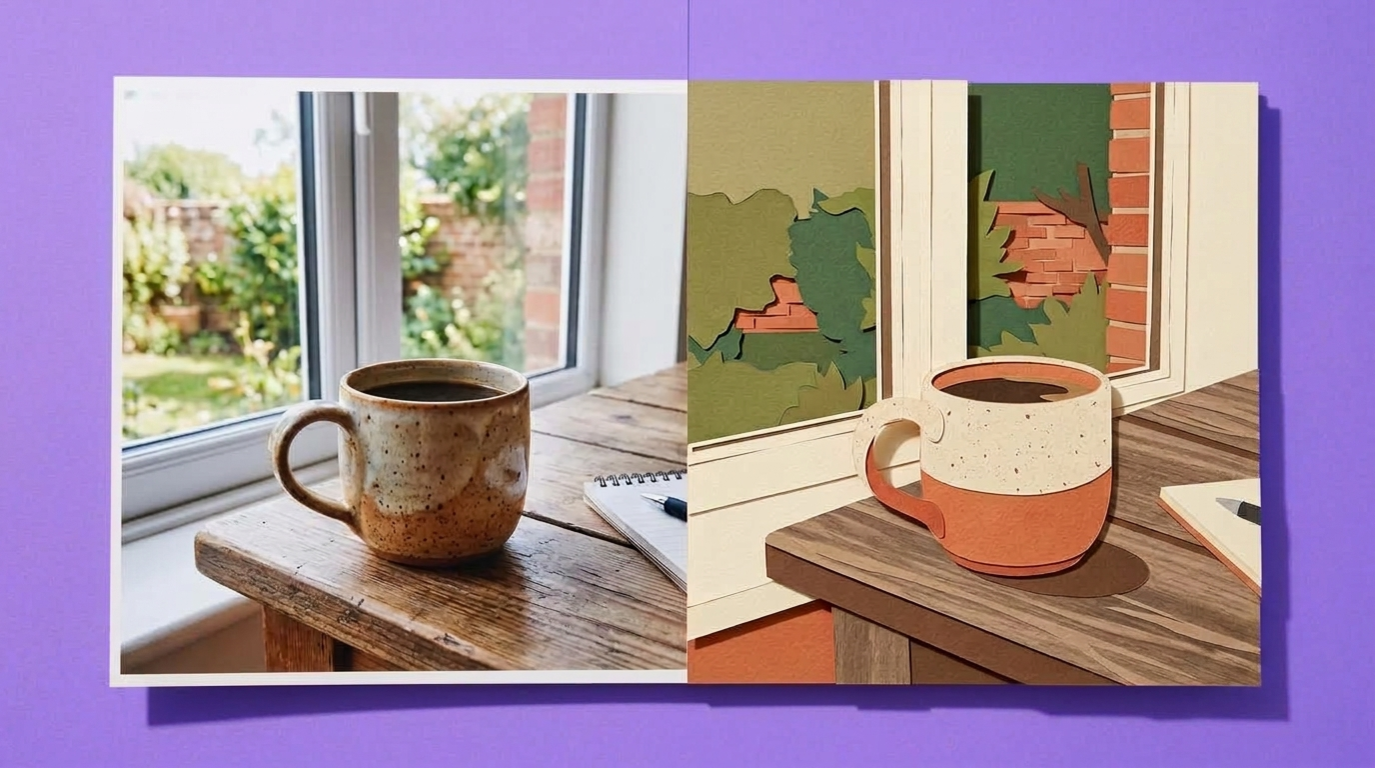
The source is a phone photo of a ceramic coffee mug on a wooden desk, lit from a window on the left. Nothing about it is special, which is the point. It shows what each kind of job keeps and what it gives up.
The edit. Prompt: "Make the mug matte black. Keep the desk, the window light, and the camera angle exactly the same." The mug should change color while the grain of the desk and the shadow stay where they were. Check the handle first. Small curved shapes are where an edit most often changes more than you asked for.
The restyle. Prompt: "Turn this photo into a flat vector illustration in cream, terracotta, and olive. Keep the mug, the window, and the composition." The layout holds, and the photo becomes shapes. For a file you can scale and recolor, select the result and choose Turn into vector under Reuse, or send it through the image vectorizer.
The variations. Select the original photo and choose Remix image with the similarity slider set high. Each version keeps the mug on the desk and moves the details: the angle of the handle, the light, the objects around it. Use this when you like the idea of an image but not its exact frame.
The same three moves work on a product shot, a sketch, a portrait, or a screenshot of a layout. For more targeted changes on a single image, the AI image editor with prompt covers the edit side in more depth.
When the result drifts
- The subject changed. Name what must stay in the prompt, and use a model that accepts reference images. A face or a product rarely survives a vague prompt.
- Nothing changed. Use a stronger verb, or a higher
strength through the API. "Turn into" moves further than "adjust." - The aspect ratio changed. Each editing model supports its own set of ratios. If yours is not one of them, the output defaults to the closest supported one, and Outpaint under Modify extends it back.
- The details look soft. Run Refine details before you export.
- The text came out garbled. Generate the image without text, and set the type afterward.
Image to image through the API
For a batch of product shots or a pipeline, the Recraft API runs the same job without the canvas. Send the source image, a prompt, and a strength value between 0 and 1 to the image-to-image endpoint. It works with Recraft V3, V4, and V4.1 models, raster or vector, and returns up to six images per request. The image-to-image API reference has working examples in cURL, Python, and JavaScript.
Start from your own image
The fastest way to learn the controls is to run one photo through all three jobs. Open the AI image generator, upload an image, and compare an edit, a restyle, and a remix side by side.
If you want the prompt behind an image rather than a new image, extract the prompt instead and generate from that.
.svg)