Here it is: upload a photo, let a model restyle it, download the result. The steps are the same across every tool. What differs is the output quality, the free-tier limits, and whether your image comes back with a watermark across the face.
This guide covers how to do it, which free tools are worth trying, and what each one actually gives you before asking for a credit card.
How to make an AI avatar from a photo: step by step
The core workflow is consistent whether you use Recraft, Canva, Fotor, or any other generator. These are the steps:
1. Choose your photo.
A clear, well-lit front-facing or three-quarter image works best. The model needs to read your features accurately. Avoid heavy filters, extreme angles, or photos where your face is partially obscured.
2. Upload to an avatar generator.
Go to your chosen tool and upload the photo. Most tools accept JPG and PNG at standard resolutions. Recraft's AI avatar generator and AI headshot generator both accept direct uploads.
3. Select a style.
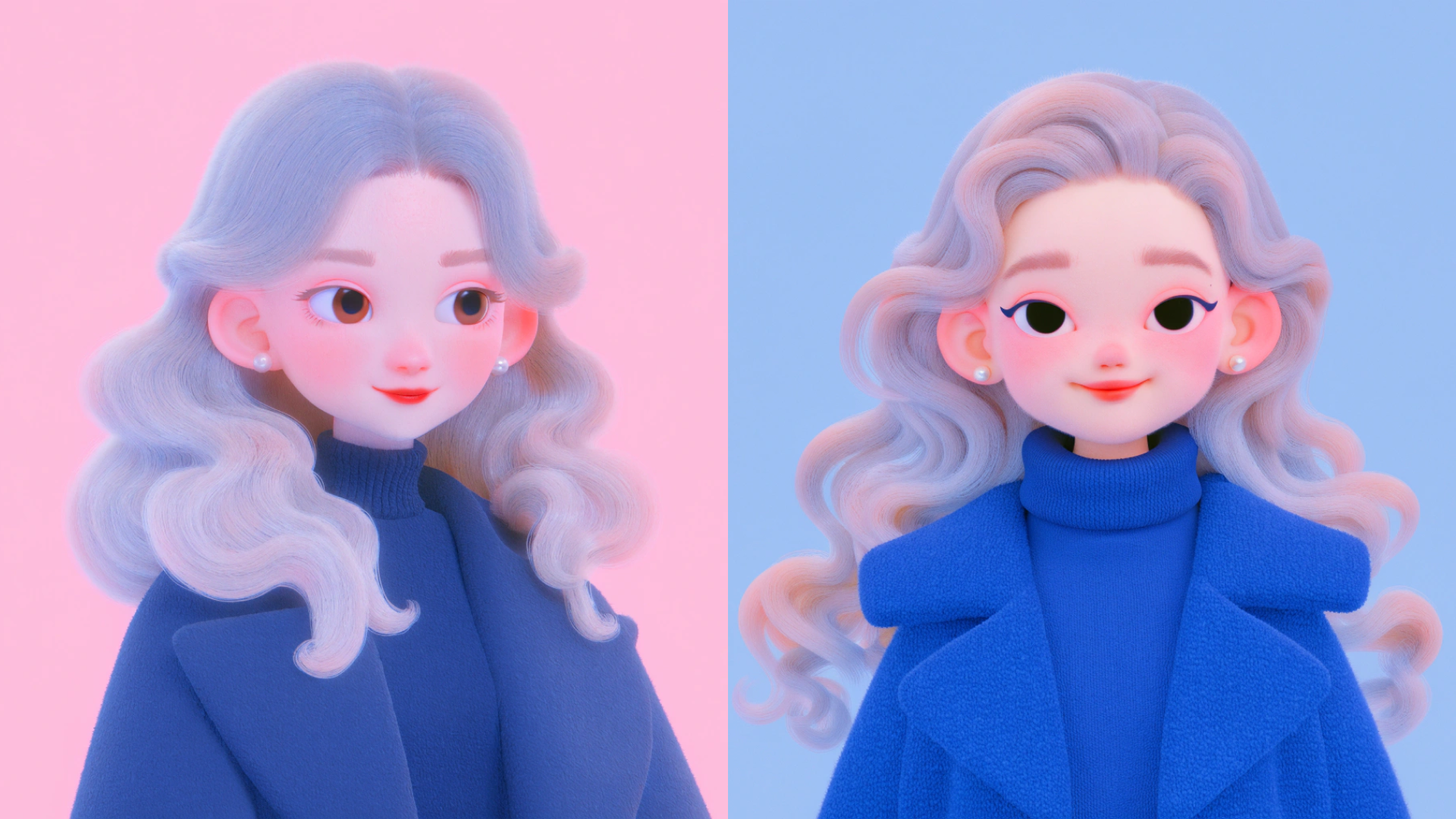
This is where tools diverge. Some offer style presets: "oil painting," "anime," "3D render," "professional headshot." Others let you type a prompt to describe the look. Recraft accepts both: you can pick from style categories or write a text prompt to describe the output you want.
4. Generate and preview.
The model processes your photo and applies the chosen style. Generation takes a few seconds on most platforms. You'll typically get one to four variants.
5. Download or export.
Free tiers usually let you download at a reduced resolution or with a watermark. Paid tiers give you the full-resolution file.
That's the full process. The variation is almost entirely in step three (style quality and control) and step five (what you can actually keep).
Is there a free AI avatar generator? What free tiers actually give you
Yes, several tools offer free AI avatar generation. Here's what each one provides and where the limits are.
Recraft
Recraft offers up to 50 free image generations per day on the free plan, with no watermark on downloaded images. The avatar generator and headshot generator are both included. Free users get access to Recraft V4.1, the same model available to paid subscribers. The free tier caps at standard resolution for some output types, and the total generation count resets daily.
Canva
Canva's AI avatar feature (part of the Magic Studio suite) is available to free users within a monthly credit allowance. Free accounts receive a limited number of AI uses per month. Once that pool is exhausted, generation stops until the next cycle. Output quality is solid for social profile use. No watermark on generated images, but the style range is narrower than dedicated avatar generators.
Fotor
Fotor offers AI avatar generation on its free tier, but watermarks the output. To download without a watermark you need a Fotor Pro subscription. The style selection covers common presets including anime, cartoon, and digital art. Upload limits and the number of free generations per day are restricted.
HeyGen
HeyGen is primarily a video avatar tool rather than a still-image generator. Its free tier allows a limited number of avatar video exports, typically with a HeyGen watermark on free outputs. For a profile photo or static avatar, it's not the right tool. It's built for video presentations and AI spokesperson content.
Adobe Firefly (via Express)
Adobe's free tier includes AI generation credits usable within Adobe Express. The output tends toward photorealistic styles. Watermarks are not applied to generated images, but the free credit allowance is modest and shared across all Firefly features in the product. Style control is limited compared to tools built specifically for avatar generation.
Midjourney
Midjourney does not offer a sustained free tier. Trial access is occasionally available but not reliable. For ongoing avatar generation, it is a paid tool. The image quality is high and style range is wide, but it requires prompt-writing skill to get good results from a reference photo.
What makes a good AI avatar output
The technical workflow matters less than the output quality. A few things to look for:
Feature accuracy. A good avatar should retain recognizable resemblance. Tools that struggle with face fidelity produce outputs that look like the right style but the wrong person. This matters most for professional headshots.
Style consistency. If you generate multiple variants or plan to create a set of avatars, you want the style to hold across generations. Some tools produce stylistically inconsistent results even from the same prompt and photo.
Background control. Backgrounds that compete with the subject undermine professional use cases. Tools that let you specify or isolate the background give you more usable results.
Prompt responsiveness. Preset-only tools are faster to use but limit how specific you can get. If you want a particular lighting setup, color palette, or editorial aesthetic, you need prompt input.
Recraft's avatar and headshot generators accept a text prompt alongside the uploaded photo, which means you can describe the output rather than selecting from a fixed menu. That's useful when the preset doesn't match what you actually need: for example, if you want a headshot that looks like it was lit for a magazine interview rather than a generic "professional" filter.
Try it
Recraft's avatar generator is at recraft.ai/generate/avatars. The headshot generator, built for professional use cases, is at recraft.ai/generate/headshots. Both are free to try, 50 generations per day, no watermark.
.svg)

.webp)

