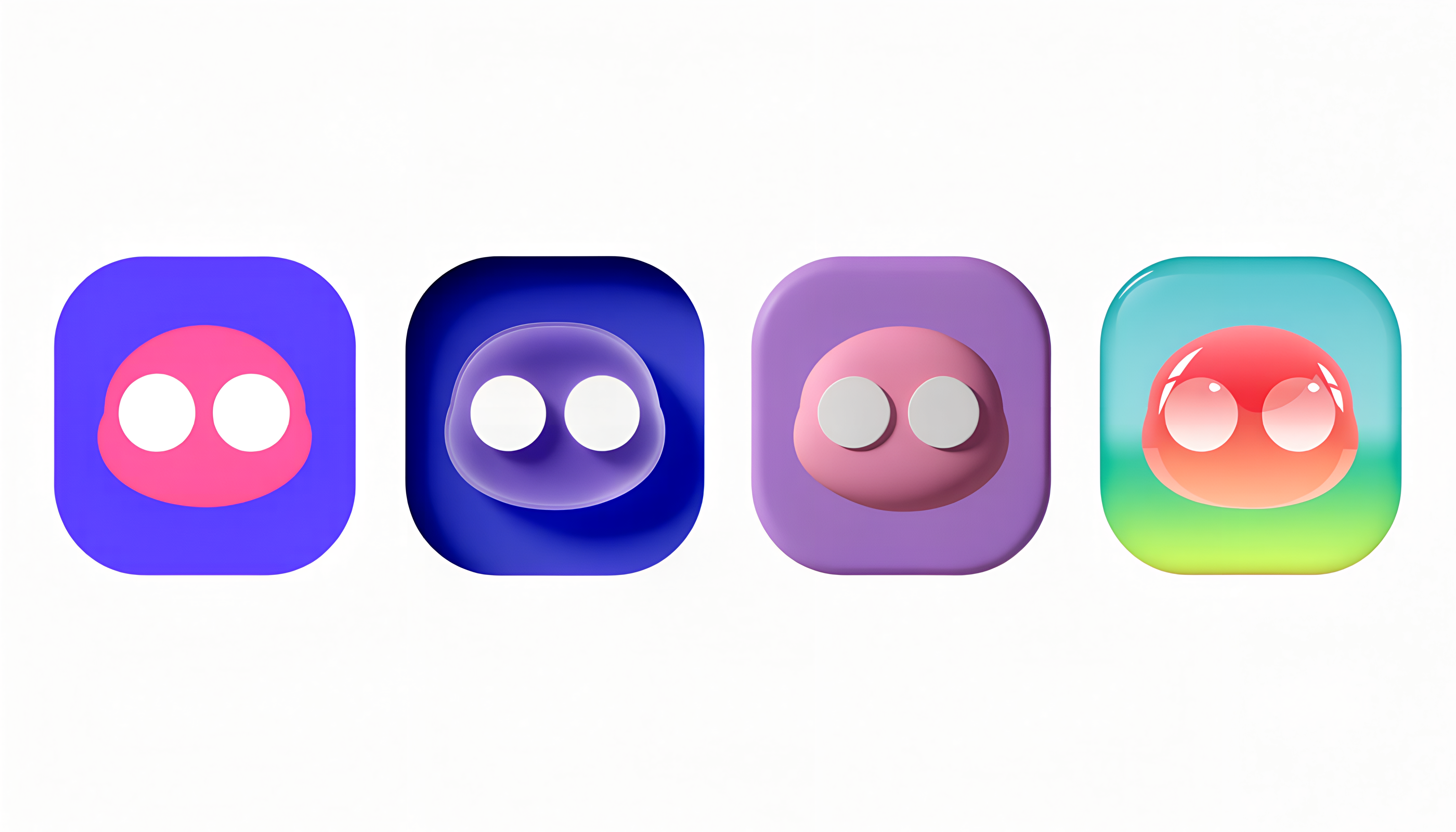
Make an app icon with AI and ship it in every size iOS and Android need. A jelly mascot for a puzzle game walks through sizes, layers, masks, and tinted modes.
Drawing an app icon is the easy part. The hard part is an icon that still reads at 40 pixels, survives three different platform masks, and keeps its face when Android repaints it in a single color.
This guide shows how to make an app icon with AI and ship it in every size iOS and Android need. The worked example is a casual puzzle game with a jelly mascot, built in Recraft with Recraft V4.1 Vector. The model is tuned for design aesthetics and follows prompts closely, so the shapes you ask for are the shapes you get, and the output is a real SVG you can split into layers later.
App icon sizes for iOS and Android at a glance
Every size below comes from one square master. Design once at 1024 pixels, then export.
App Store and iOS 26: one 1024 × 1024 px square, filled edge to edge. The system applies the rounded mask and generates every smaller size. Icon Composer adds default, dark, clear, and tinted appearances.
Google Play listing: 512 × 512 px, 32-bit PNG, sRGB, up to 1,024 KB, full square. Google Play applies a corner radius of 30% of the icon size and adds the drop shadow itself.
Android adaptive launcher icon: a foreground layer and a background layer, each 108 × 108 dp. Launchers show only the central 72 dp, and your logo has to fit the 66 × 66 dp safe zone.
Android themed icon: one monochrome 108 × 108 dp layer that the system tints to match the wallpaper (Android 13 and later). From Android 16 QPR 2, Android themes apps that don't provide one automatically.
Legacy Android launcher PNGs: 48, 72, 96, 144, and 192 px (mdpi to xxxhdpi), only if you still support Android 7.1 or earlier.
What makes an app icon readable at 40 pixels
On the Home Screen an iPhone shows your icon at 60 points, which is 180 pixels on most current phones. In Settings it drops to 29 points, and in notifications to 20. Design for the smallest place first.
One silhouette. If you can't recognize the shape filled in solid black, it won't survive at 40 px.
Two or three colors. Strong contrast between the subject and the background does more than any gradient.
No text. Words become gray noise at small sizes, and Google Play doesn't allow promotional text like "FREE" or "#1" in the icon.
No thin lines. Outlines and fine details disappear first.
A full-bleed square. Never round the corners yourself. Every platform applies its own mask.
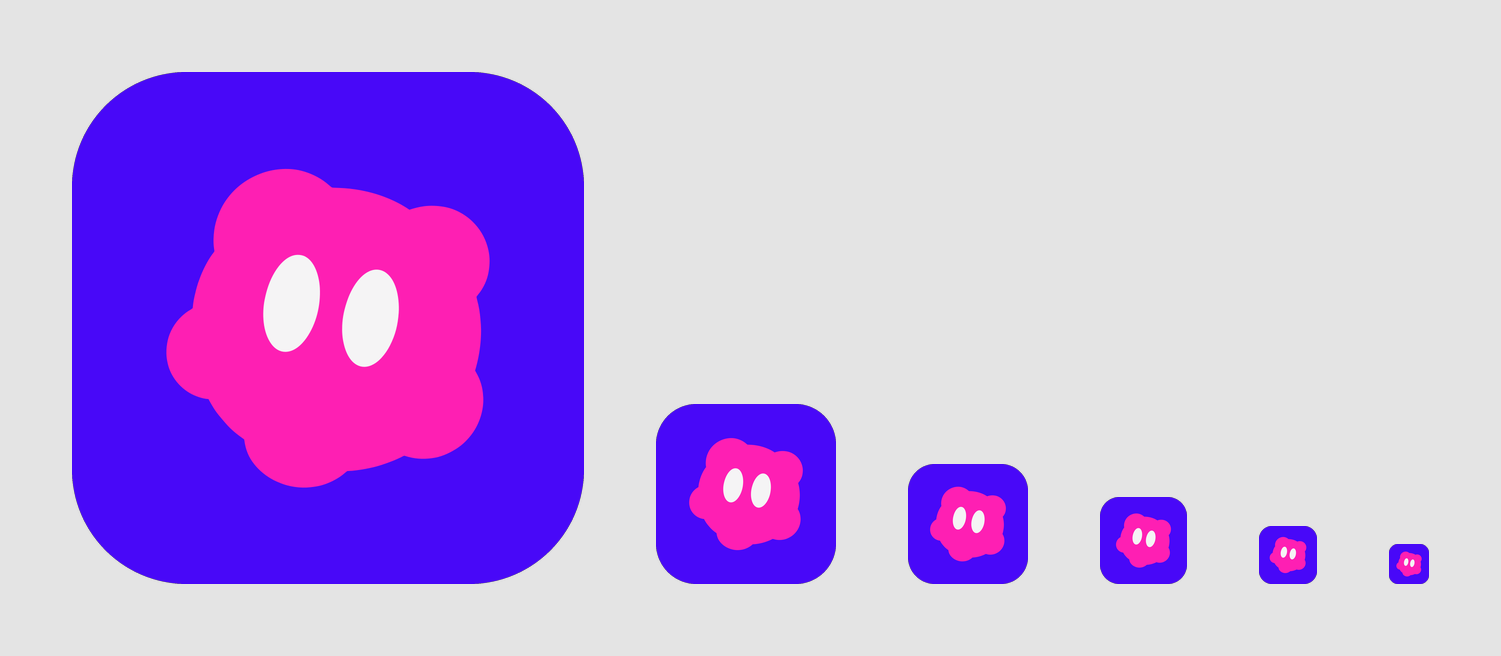
The same icon at 512, 180, 120, 87, 58, and 40 px: Home Screen, Settings, and notification sizes.
Step 1: Generate app icon concepts with AI
A good app icon prompt names what the app is, one subject, its shape language, two or three colors, and the format rules. Here is the prompt behind our jelly mascot:
Mobile game app icon for a casual puzzle game: a round jelly blob mascot with two big simple oval eyes, one bold rounded silhouette, centered, filling about 60 percent of the square, hot pink jelly on a solid electric violet-blue background filling the full square edge to edge, no rounded corners, no border. Flat vector, three to four colors, thick simple shapes that stay readable at very small sizes, no thin lines, no text.
Generate at least four options with a vector model. In Recraft, pick Recraft V4.1 Vector so each result arrives as an editable SVG, or start from the AI icon generator. Then judge the options at 40 px, not at full size. A concept that looks charming at 1024 px can turn into a pink smudge on the Home Screen.
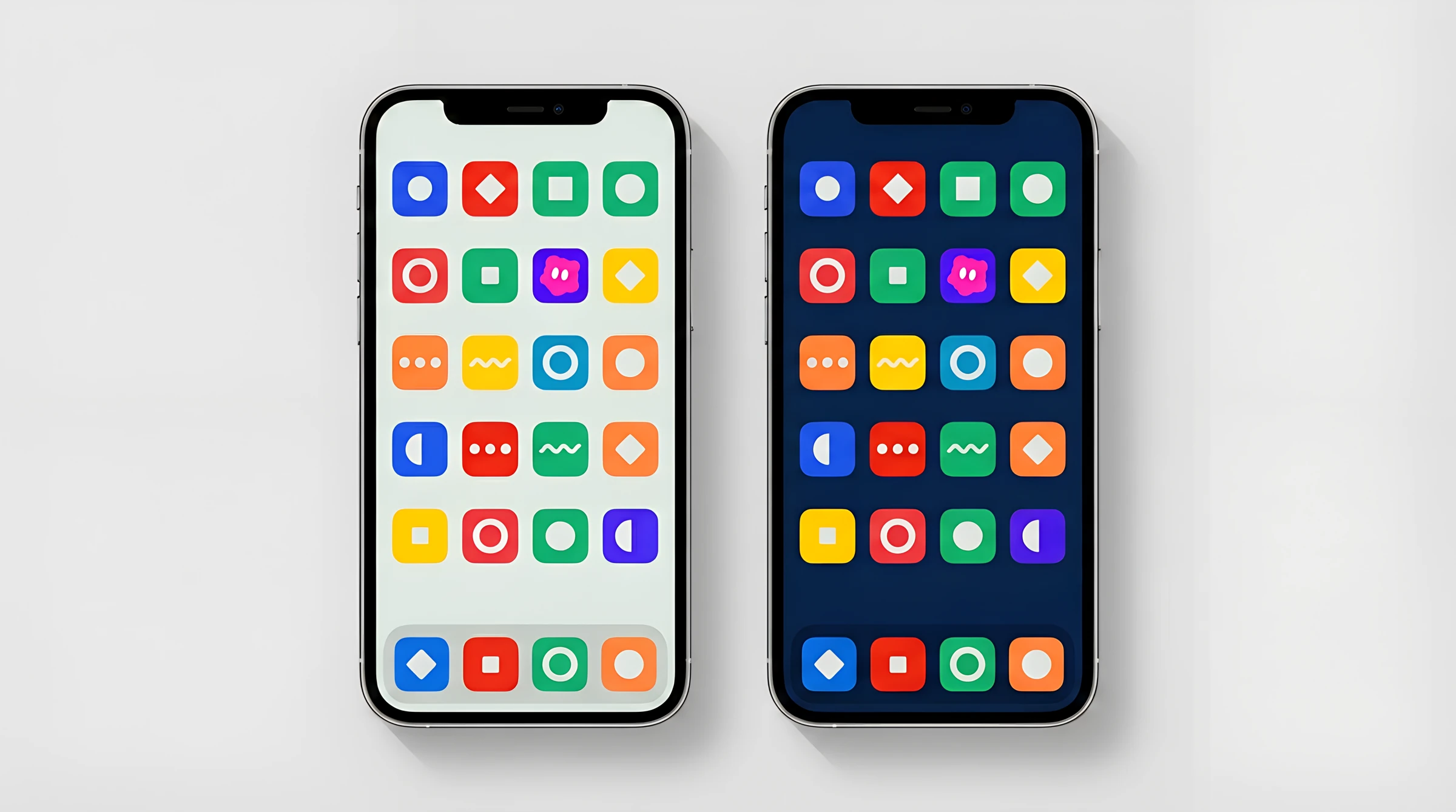
Then check your shortlist in context. On a real home screen your icon sits among twenty others, so color alone rarely makes it stand out. In the mockup below, a violet neighbor shares the mascot's background, and the face is what your eye finds first.
A stylized home screen with placeholder apps: on light and dark wallpapers, the mascot’s face makes it easy to find.
Check one more thing before you commit: that your mascot isn't accidentally someone else's. One of our first drafts looked too close to a famous arcade ghost, so it went straight to the bin.
Step 2: Pick an app icon style
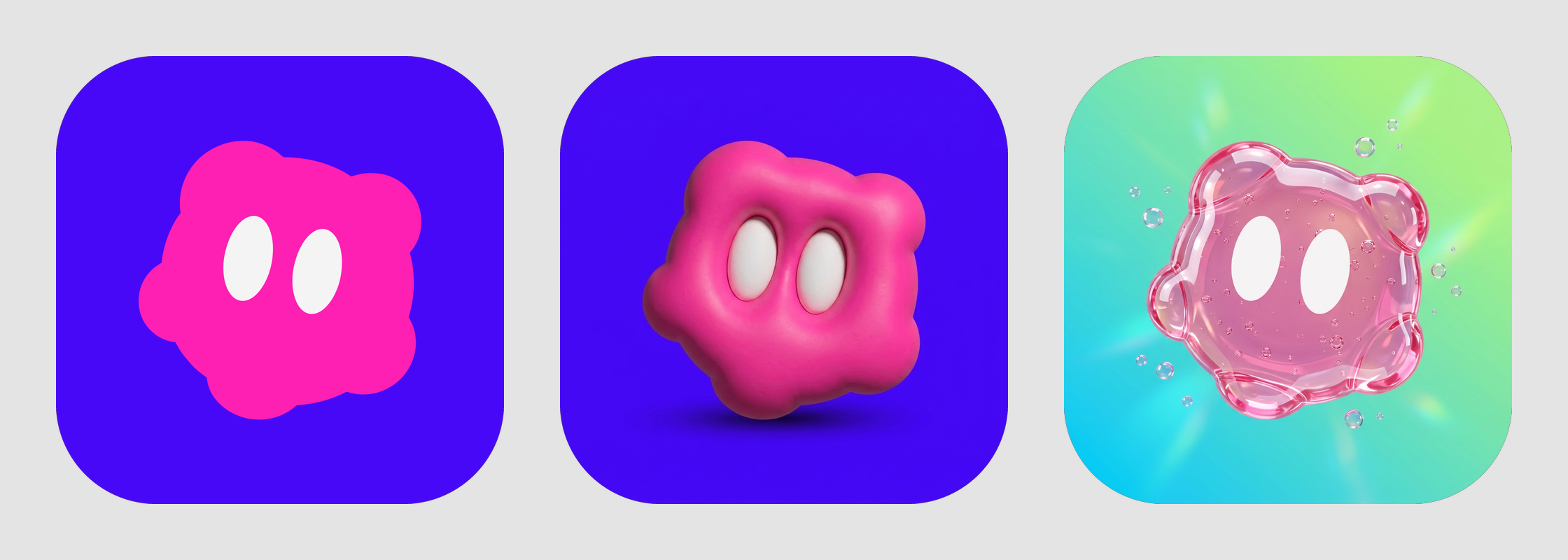
Four styles dominate app icons right now. Each one behaves differently at small sizes and in tinted modes, so choose with the whole checklist in mind.
Flat glyph
One bold shape on a solid color. It reads best at every size, survives monochrome and tinted modes without changes, and doubles as the source for your layers. It suits utilities, productivity, and finance apps, and it's the right master for almost any icon.
Soft 3D clay
Inflated, matte forms with gentle top light. It's among the most-viewed app icon looks on Dribbble this month, and searches for claymorphism grew about 80% over the past year, according to Ahrefs. It suits games, kids' apps, and consumer products. The baked lighting doesn't survive tinting, so pair it with a flat monochrome layer.
Frutiger Aero
Glossy, translucent, aqua and lime, with bubbles and highlights. It's a revival of the late-2000s optimistic gloss, and it fits lifestyle and casual apps. Its small details vanish first, so keep the bubbles big or leave them out.
Layered glass
Apple's Liquid Glass look for iOS 26. Don't generate glass with AI. Build flat layers and let Icon Composer add the highlights and translucency, because effects baked into the artwork fight with the ones the system adds.
You don't have to redraw the mascot for each style. Use your flat master as a reference image in Recraft Studio, pick an editing model, and describe only the new material. The silhouette, eyes, and proportions stay put. The character in different art styles guide covers the same technique for full characters.
Step 3: Split the icon into layers
Both platforms now build icons from layers. iOS uses them for the glass depth effect, and Android uses them for parallax and masking. You need at least two: a background and a foreground.
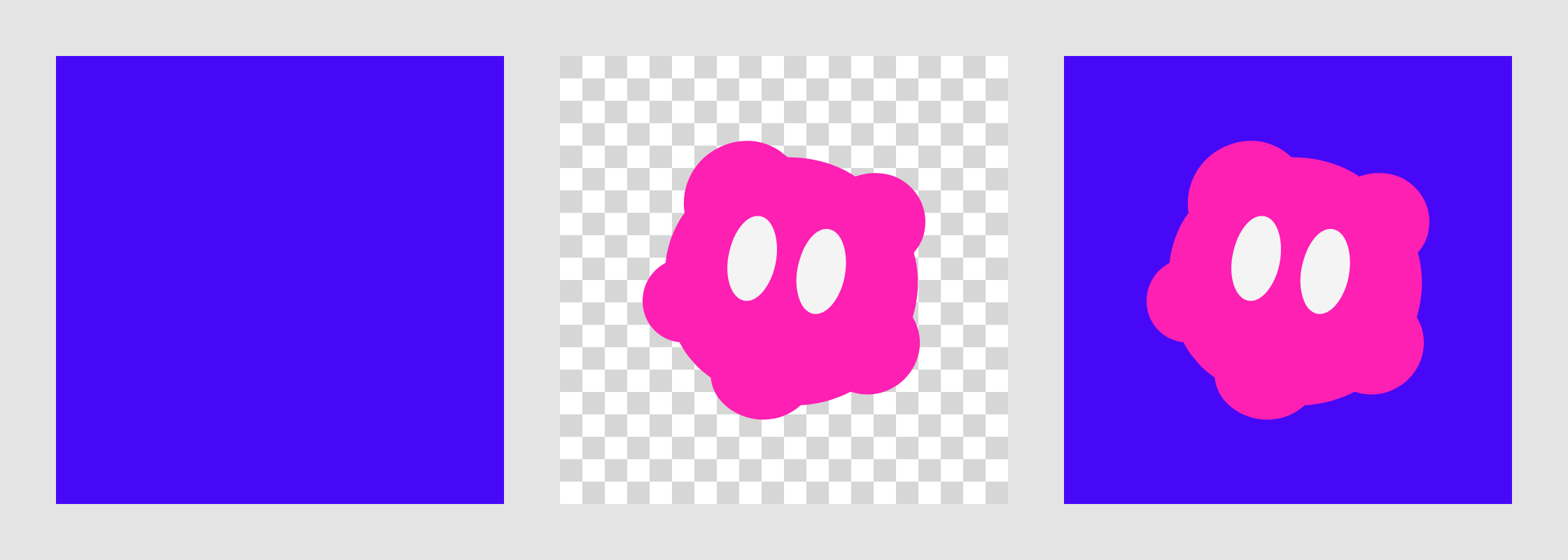
With an SVG this takes a minute. Open the file in Figma or Illustrator, put the background shape in one group and everything else in another, and export each group on its own. With a raster icon, cut the subject out with a background remover and fill the background separately.
Background layer, transparent foreground layer, and the combined icon.
Step 4: Export the app icon for iOS
Apple's Icon Composer app, available alongside Xcode 26, turns your layers into a single icon file with every appearance.
Add the background as the icon background and the foreground as a layer group.
Leave the glass settings near their defaults. The highlights should come from Icon Composer, not from your artwork.
Preview the default, dark, clear, and tinted appearances.
Save the .icon file and add it to your app target in Xcode. The system generates the Home Screen, Spotlight, Settings, and notification sizes from it.
Dark, clear, and tinted icons
In tinted mode iOS turns your icon into a single hue. Light or white foreground shapes keep their contrast, and dark details sink into the background. If your icon loses its key shapes in the preview, give Icon Composer a dedicated monochrome treatment instead of letting it guess.
Step 5: Export the app icon for Android
Adaptive icon layers and the safe zone
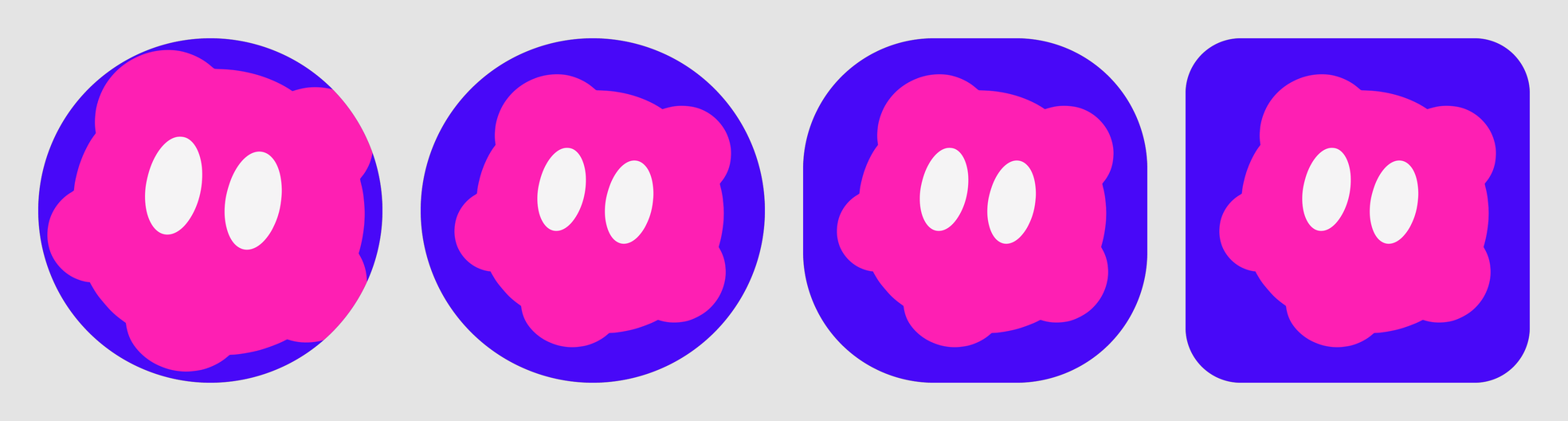
Android launchers crop the 108 dp canvas into a circle, a squircle, or a rounded square, and only the central 72 dp is ever visible. Artwork made for iOS is usually too big. Our mascot reached 38 dp from the center, so the circle mask clipped its bumps. Scaling the foreground to 85% put it inside the 66 dp safe zone in every shape.
Left: the iOS artwork as is, clipped by a circle mask. Right: the foreground scaled to the safe zone in three launcher shapes.
Android's documentation recommends vector layers, so keep the SVG versions of your foreground and background. Import them as the foreground and background of the adaptive icon in Android Studio.
Themed (monochrome) icon
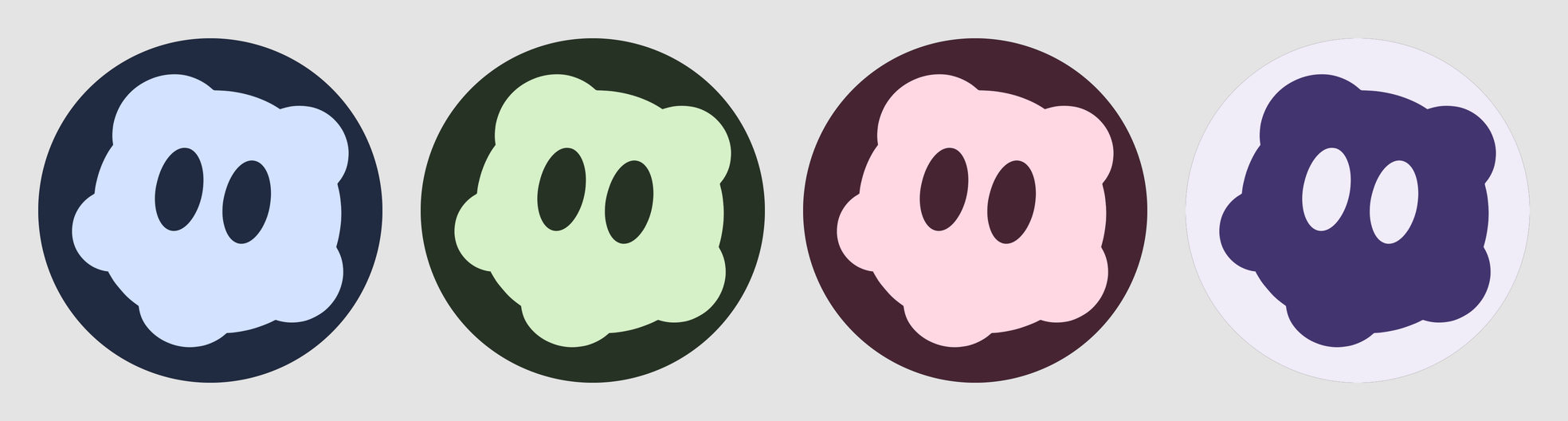
For themed icons Android takes one single-color layer and paints it with the user's wallpaper colors. Draw it as a silhouette, and turn inner details into cut-outs. If the eyes stay as white shapes, they get painted the same color as the body and the face disappears.
The monochrome layer with the eyes as cut-outs, tinted by four different system themes.
Google Play icon
Export the full-color master as a 512 × 512 px, 32-bit PNG in sRGB. Keep it a full square with no shadow, since Google Play adds both the rounded corners and the shadow.
When an icon resizer saves time
Packaging tools are good at the boring part. appicon.co and Icon Kitchen take one image and return every legacy size and the Android folder structure in seconds, and Icon Composer handles the iOS appearances. Use them after the design is done. None of them decide what your icon looks like, and the safe-zone and monochrome checks above still apply to what they export.
App icon checklist before you submit
The icon reads at 40 px and as a solid black silhouette.
No text, no thin lines, no rounded corners baked into the artwork.
A 1024 × 1024 px full-square master for iOS, built into an Icon Composer file.
Dark, clear, and tinted appearances previewed on iOS.
Android foreground fits the 66 dp safe zone in circle, squircle, and rounded square masks.
A monochrome layer with inner details as cut-outs.
A 512 × 512 px, 32-bit PNG for the Google Play listing, under 1,024 KB.
The original SVG layers saved for the next redesign.
Once the icon ships, the rest of the game needs the same look: buttons, tiles, and power-ups that match the mascot. The AI game asset generator helps you keep them in one style, and the mascot design guide shows how to turn a character like this jelly into a full expression set.
FAQs
What size should an app icon be?
Start from one 1024 × 1024 px square. Apple builds every iOS size from that master, and the Google Play listing needs a 512 × 512 px PNG. Android launchers also need two 108 × 108 dp adaptive layers, with the important artwork inside the central 66 dp.
Can I make an app icon with AI?
Yes. Write a prompt that names one subject, two or three colors, and a full-bleed square with no text, then pick the option that still reads at 40 px. A vector model such as Recraft V4.1 Vector returns an SVG, which makes splitting the icon into layers for iOS and Android much easier.
Do iOS and Android need different app icons?
They can share one design, but not one file. iOS wants a single square master and adds its own mask and glass effects, while Android wants separate foreground and background layers that launchers crop into circles or squircles. Plan for both from the first sketch so the artwork fits Android's smaller safe zone.
Should an app icon have a transparent background?
No. The App Store icon and the Google Play icon should both be full squares filled edge to edge, and each platform applies its own corner mask. Transparency belongs only in layers: the foreground of an Android adaptive icon or a foreground group in Icon Composer.
What file format should an app icon be?
Ship PNGs: a 1024 px master for iOS and a 32-bit 512 px PNG for Google Play. Keep the SVG source too, because Android recommends vector layers for adaptive icons and Icon Composer works best with layered artwork.
.svg)