Every YouTube banner spec checked against its Help Center, plus a to-scale map of the safe area.
Short answerThe recommended YouTube banner size is 2560 x 1440 pixels (16:9), with your channel name, logo, and any text inside the center safe area of about 1546 x 423 pixels. The minimum upload is 2048 x 1152 pixels, where YouTube puts the safe area at 1235 x 338 pixels. Keep the file at 6 MB or smaller, saved as a JPG or PNG.
Key takeaways
Upload your YouTube banner at 2560 x 1440 pixels, the size YouTube recommends, especially for TV, with 2048 x 1152 pixels as the minimum.
YouTube uses one banner image on every screen and crops it differently on each, so only a center band shows everywhere.
Text and logos belong inside 1235 x 338 pixels on a minimum-size banner, or about 1546 x 423 pixels on a 2560 x 1440 banner.
The file must be 6 MB or smaller, with no added borders, shadows, or frames.
YouTube Studio shows a crop preview when you upload, and it is a more reliable check than any template.
YouTube banner size at a glance
YouTube's channel banner (older guides call it channel art) is one 16:9 image. These are the numbers YouTube's Help Center gives for it, checked on November 23, 2026.
Spec
YouTube's number
Recommended size
2560 x 1440 px, especially for TV
Minimum size
2048 x 1152 px
Aspect ratio
16:9
Safe area for text and logos
1235 x 338 px, at the minimum size
Maximum file size
6 MB
File type
Not listed for banners. Use JPG or PNG
Borders, shadows, frames
Leave them out
The safe area is the number to design around. YouTube states it only for the minimum size, so if you work on the recommended 2560 x 1440 canvas, scale it up by 1.25: about 1544 x 423 pixels. Most banner templates use 1546 x 423 pixels, close enough to use as your guide.
How YouTube crops your banner on each screen
YouTube uses the same banner on every device and crops it to fit each screen. A TV shows the whole 16:9 image. Other screens crop it, so text and logos belong in the center safe area, the part YouTube keeps on every screen.
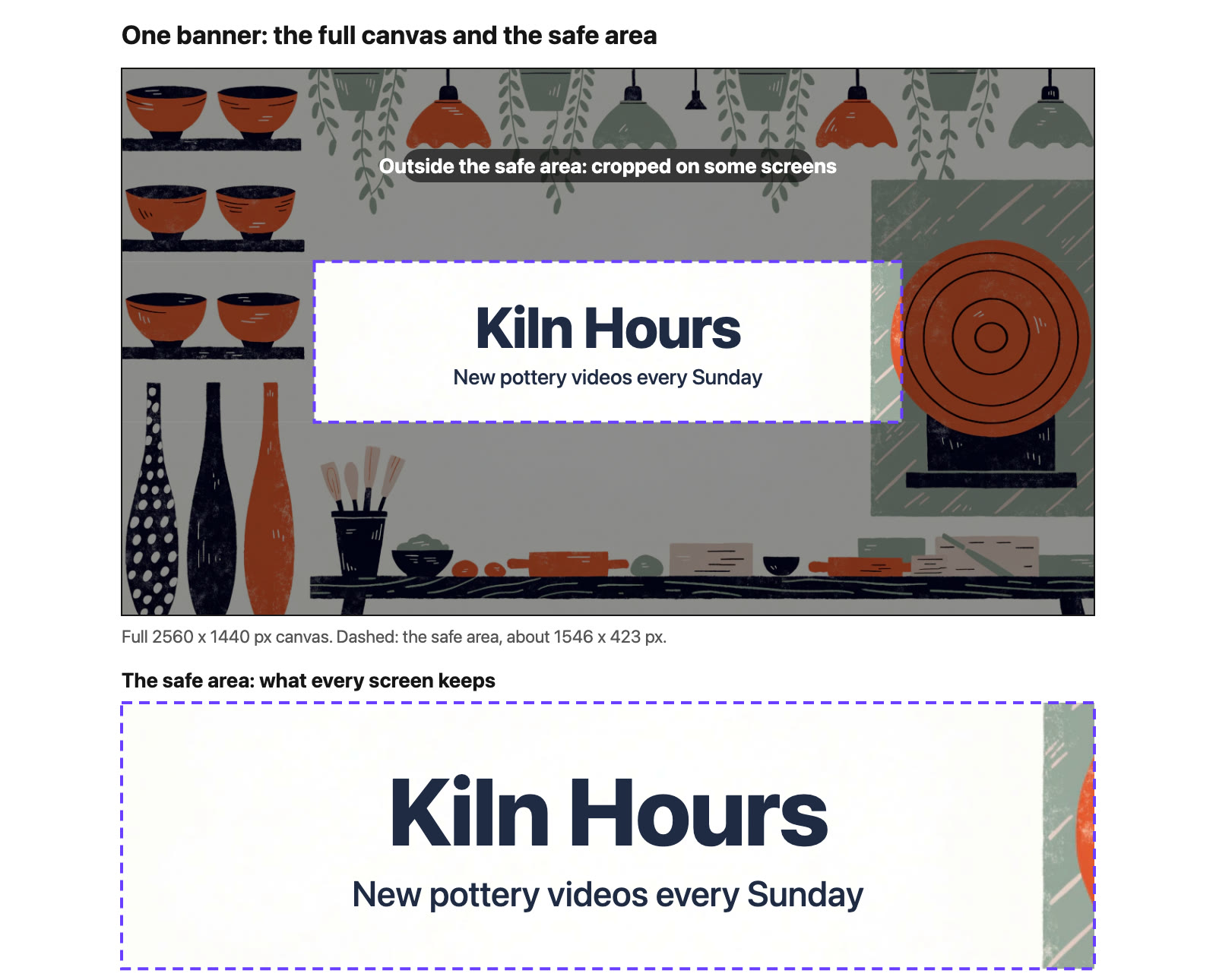
The safe area on a 2560 x 1440 banner, drawn to scale. Text and logos inside it are not cut off on any screen.
YouTube’s Help Center doesn’t list a crop size for each device, so design around the safe area and check the result in YouTube Studio’s preview.
What that means for the layout:
Safe area: the channel name, logo, tagline, and upload schedule. Anything a viewer has to read.
Left and right of the safe area: artwork that can lose its edges, such as pattern, texture, or the sides of an illustration. How much of it shows depends on the screen.
Top and bottom: background only. A TV shows them, because it shows the whole image.
One exception: on Official Artist Channels, YouTube shows the banner on computers and mobile devices only, not on TV.
How to set up the banner file
Start at 2560 x 1440 pixels. Set the canvas before you place anything. A 1920 x 1080 file, the usual video frame size, falls below YouTube's 2048 x 1152 minimum.
Draw the safe area as a guide. Center a 1546 x 423 rectangle on the canvas, about 507 pixels in from the left and right edges and 508 pixels down from the top.
Fill the whole canvas. TV shows all of it, so empty top and bottom areas look unfinished there. Put the detail that can be cropped toward the edges and keep the middle calm.
Set the type large. On a phone, the banner shows at the width of a small screen. Zoom out until the safe area on your canvas is about as wide as your phone, and check that the tagline still reads.
Export at 6 MB or smaller. PNG suits flat illustration and type. A detailed photo saved as PNG at 2560 x 1440 can go over 6 MB, so save photo banners as JPG.
Skip borders, shadows, and frames. YouTube asks for none, and the crop would cut a border off on some screens.
Making the banner art with AI
If you generate the art, write the layout into the prompt: detail at the left and right edges, a plain area in the middle, and no text. Then add your channel name as live type in an editor, so you can place it inside the safe area to the pixel.
The banner below started as a Recraft V4.1 image from a prompt along those lines: a pottery studio with shelves and plants at the edges and a plain cream wall in the center. The channel name and schedule were set in type afterward.
Banner art made with Recraft V4.1, with the channel name added as type. The dashed box is the safe area, which no screen crops.
In the safe-area crop, almost all of the illustration is gone and the name carries the banner. That is the trade every YouTube banner makes, and the reason the center has to work on its own.
In Recraft Studio, the YouTube banner generator lets you adjust the aspect ratio to YouTube's dimensions, edit the result, and export a JPG or PNG. If the art comes out smaller than 2560 x 1440, run it through the image upscaler instead of stretching it in a layout tool. If the channel is a business, check the license first: on Recraft's free plan, images are public and not licensed for commercial use.
For character-led and illustrated styles, the cartoon YouTube banner guide covers color, type, and characters. If you would rather start from a template, the comparison of YouTube banner makers shows which tools overlay the safe area for you.
How to check the crop before you publish
YouTube shows a crop preview when you upload a banner, and it is the most reliable check you have, because it shows YouTube's current crops rather than a template's.
Sign in to YouTube Studio, and from the left menu select Customization, then Profile.
In the banner image section, click Change and select your file.
Select a preview to adjust the crop if you need to, then click Done.
Click Publish.
In the YouTube app for Android, open your channel, tap the edit icon, then tap the banner image to replace it.
After publishing, open the channel on a phone and on a computer. If the name runs off the edge on the phone, it sits outside the safe area: move it toward the center and upload again.
Common YouTube banner mistakes
Text near the edges. Anything outside the safe area can be cut off on smaller screens, including a website address or social handle tucked into a corner.
Reusing a video frame or thumbnail. A 1920 x 1080 frame is below the minimum, and its subject rarely sits inside the safe area.
Stretching a small image. A banner scaled up from a small file looks soft on TV, where it fills the screen. Upscale with a tool that rebuilds detail, or generate at a larger size.
A file over 6 MB. Photo banners saved as PNG are the usual cause. Export them as JPG.
Borders and drop shadows. YouTube asks you to leave them out, and the crop cuts them off on some screens.
Busy art behind the name. The safe area is small on a phone, so the name needs a calm, high-contrast area behind it.
Get the canvas, the safe area, and the file size right, and the banner looks the way you designed it on every screen. Thumbnails follow their own rules: the YouTube thumbnail generator is the next stop for those.
FAQs
What size should a YouTube banner be?
A YouTube banner should be 2560 x 1440 pixels, a 16:9 image, which YouTube recommends especially for TV. The smallest size it accepts is 2048 x 1152 pixels, and the file must be 6 MB or smaller. Keep text and logos in the center, inside about 1546 x 423 pixels.
What is the safe area on a YouTube banner?
The safe area is the center band of the banner that every device shows, so it is where text and logos belong. YouTube gives it as 1235 x 338 pixels on a 2048 x 1152 banner. On a 2560 x 1440 banner the same area is about 1546 x 423 pixels.
Why is my YouTube banner cut off on mobile?
YouTube uses one banner image on every device and crops it to fit each screen, so anything outside the safe area can be cut off on a phone. Move text and logos inside the safe area, about 1546 x 423 pixels of a 2560 x 1440 banner, and check the crop preview in YouTube Studio before you publish.
What file type should a YouTube banner be?
Save it as a JPG or PNG, at 6 MB or smaller. YouTube's Help Center states the 6 MB limit but doesn't list banner file types, so stick to the two formats every design tool exports. PNG suits flat art and type, and JPG keeps photo banners under the limit.
Is a YouTube banner the same size as a thumbnail?
No. Both are 16:9, but a banner is 2560 x 1440 pixels and YouTube crops it on many screens, while a video thumbnail shows in full. YouTube's Help Center asks for thumbnails at 3840 x 2160 pixels, with a minimum width of 640 pixels, in a format such as JPG or PNG.